
Before your DFFH monthly report can show data, you need to tell Social Planet which Services and Coordination types your house actually delivers. You don't need to set up every item on the standard lists — only add the ones that are relevant to your house.
Before you begin
You'll need account access to Account > Tags, then the NH Report Items tab.
Steps
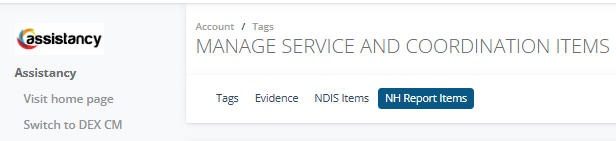
1. Go to Account > Tags, then select the NH Report Items tab.
2. You'll see two panels: Services on the left and Coordinations on the right.
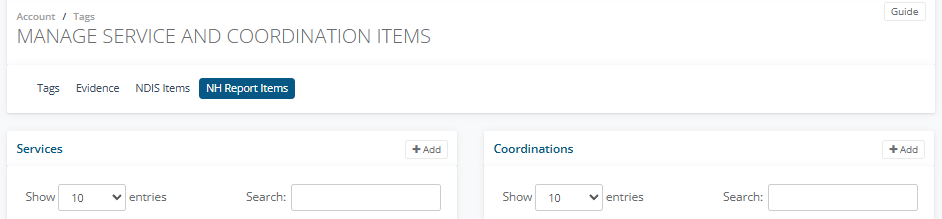
3. To add a Service, click + Add above the Services panel.
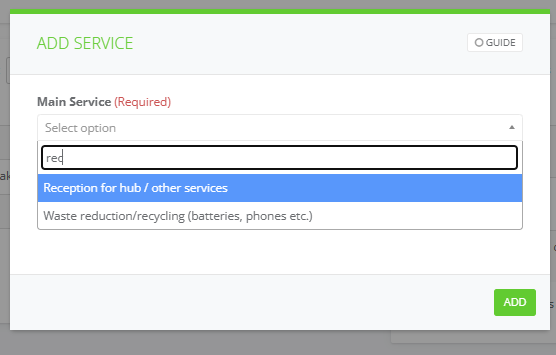
4. In the Add Service window, select a Main Service from the dropdown. This is required — every Service must map to one of Social Planet's standard Main Service categories, which keeps reporting consistent across all houses.
5. In the Name field, enter what you'd like this Service to be called. This is optional — if you leave it blank, it will use the same name as the Main Service you selected.
6. Click Add.
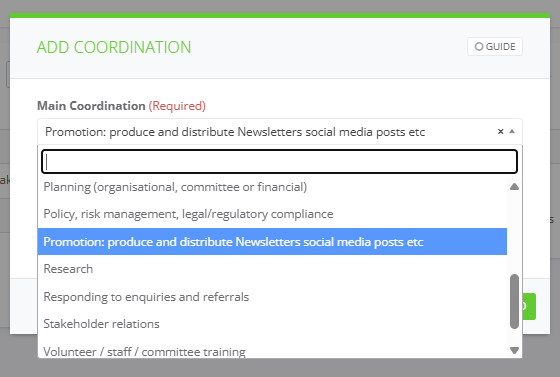
7. To add a Coordination, click + Add above the Coordinations panel and follow the same steps, selecting a Main Coordination instead of a Main Service.
8. Repeat for each Service and Coordination your house needs to report on.
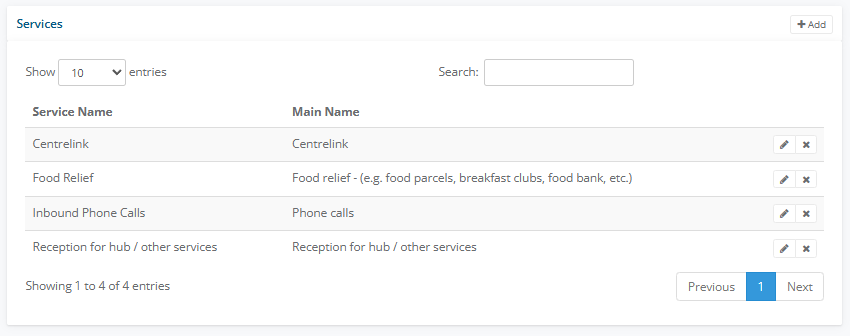
Once added, your Services and Coordinations appear in their panel with the Main Name they're linked to. You can edit (pencil icon) or remove (x icon) any entry from this screen at any time.
Tips or notes
- Only add the Services and Coordinations your house actually delivers. Not every item on the standard Main Service or Main Coordination lists needs a matching entry in Social Planet — for example, some coordination types like Administration: finance, enrolments, site management etc. or Policy, risk management, legal/regulatory compliance may not need to be tracked here at all if your house doesn't record them this way.
- Set these up before linking any counters — counters can only be linked to Services or Coordinations that already exist on this screen.
- If you can't find a Main Service or Main Coordination that fits, use the Other option.
Related articles