
Once your Services and Coordinations are set up, you can link individual counters to them. This tells Social Planet which counter clicks should count toward your DFFH monthly report, and how those clicks convert into hours.
Before you begin
Set up your Services and Coordinations first — see Setting Up Services and Coordinations for DFFH Reporting. You'll also need access to Account > Counters.
Steps
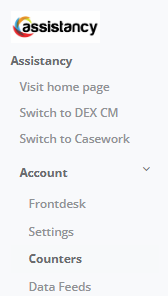
1. Go to Account > Counters.
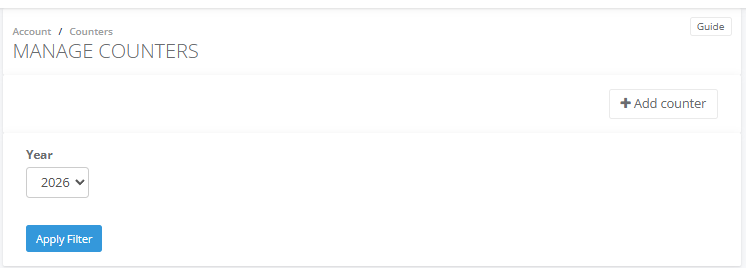
2. If the counter you want to link doesn't exist yet, click + Add counter to create it. If it already exists, find it in the list and open its Actions menu, then select Edit.
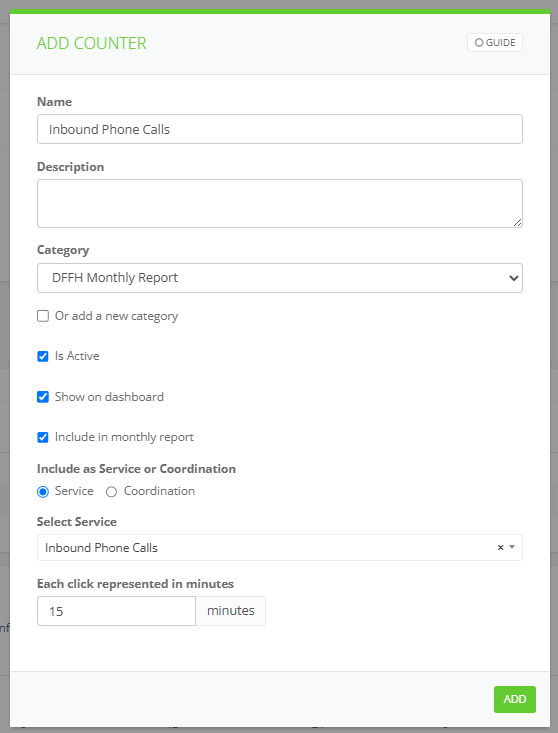
3. If you're adding a new counter, enter a Name and, optionally, a Description.
4. In the Edit Counter window, tick Include in monthly report.
5. Under Include as Service or Coordination, choose Service or Coordination, depending on what this counter should contribute to.
6. Use the Select Service (or Select Coordination) dropdown to choose which one this counter feeds into. Only Services or Coordinations you've already added under NH Report Items will appear here.
7. In Each click represented in minutes, enter the number of minutes one click on this counter is worth.
8. Click Save.
Tips or notes
- A counter can only be linked to one Service or one Coordination — but you can link several counters to the same Service or Coordination if more than one counter contributes to it.
- The Each click represented in minutes value only affects the DFFH monthly report. Everywhere else in Social Planet — the Counter section, other reports — 1 click still represents 1 count. This conversion exists because the monthly report records Services and Coordination in hours, not clicks.
- If the Service or Coordination you're looking for isn't in the list, it hasn't been added yet — go back and add it under NH Report Items first.
- Category doesn't affect whether a counter appears in the monthly report, but it does control how counters are grouped on the front desk screen. We recommend using DFFH Monthly Report - Services and DFFH Monthly Report - Coordinations as category names for any counters linked to DFFH reporting. This groups them clearly under their own headings on the front desk, making it easy for staff to find and click the right counter day to day.
- Show on dashboard is unrelated to monthly reporting — it controls whether the counter appears on your Social Planet dashboard.
Related articles