
The DFFH Monthly Report brings together your activity, service, and coordination data for a selected month, ready for DFFH reporting. This article covers generating the report, reviewing and adjusting the data, and exporting it.
Before you begin
Make sure your Services, Coordinations, and counters are set up first — see Setting Up Services and Coordinations for DFFH Reporting and Linking Counters to Your DFFH Monthly Report.
Page layout
The NH Monthly Report page is made up of three parts, stacked top to bottom:
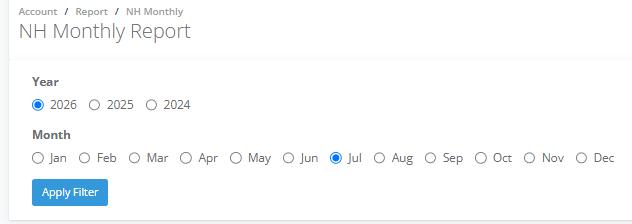
- Year and Month filter — at the top of the page. Choose a Year (current year plus the two previous years) and a Month, then click Apply Filter to load that period.
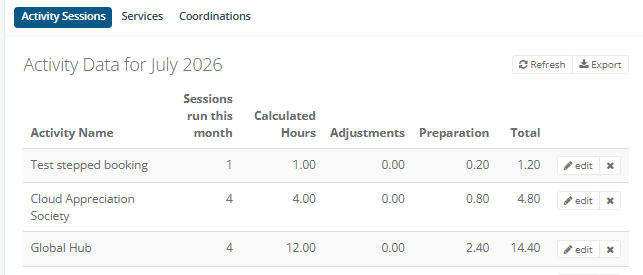
- Section tabs — Activity Sessions, Services, and Coordinations. These sit below the filter and switch which data set you're viewing. Each tab has its own Refresh and Export buttons in the top right of the panel.
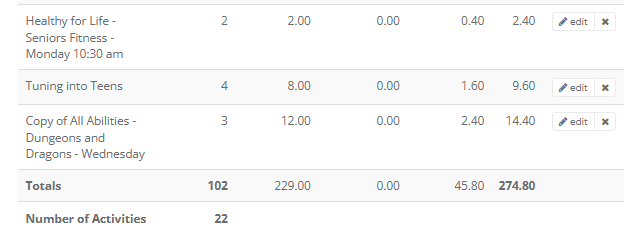
- Data table — shows the records for whichever tab is selected, with a Totals row at the bottom summing every column, and (on the Activity Sessions tab) a Number of Activities row underneath that.
Steps
1. Go to Account > Reports.
2. Click the NH Monthly tile.

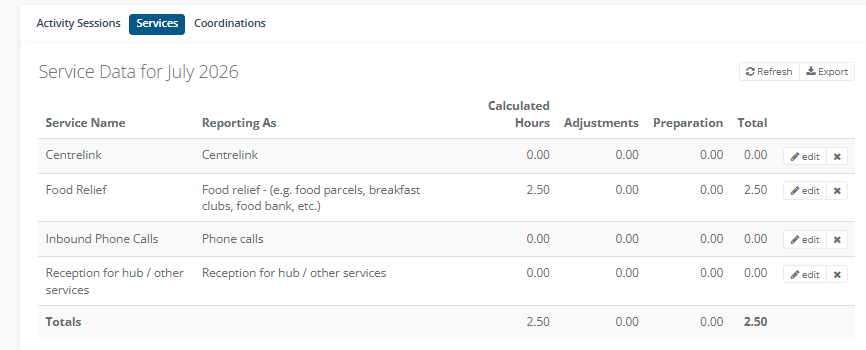
3. Select the Year and Month you want to report on.
Activity Sessions
4. Click the Activity Sessions tab.

5. Click Refresh to generate the data for this tab and the selected month. If this is the first time this year and month combination has been loaded, the tab will be empty until you do this.
6. Each row shows: Activity Name, Sessions run this month, Calculated Hours (summed automatically from session durations), Adjustments, Preparation, and Total. Only activities with sessions in the selected month appear here.
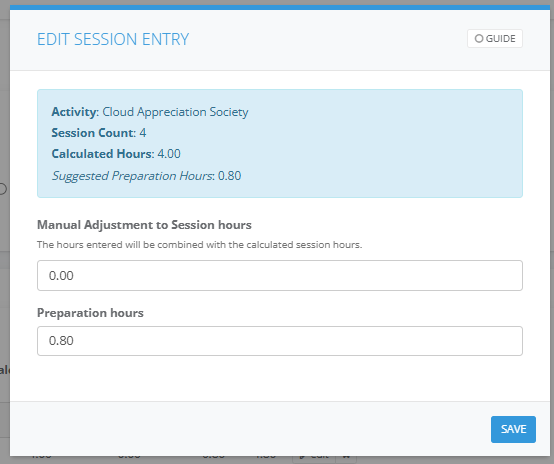
7. To adjust a row, click edit next to it. The Edit Session Entry window shows the Activity name, Session Count, and Calculated Hours for reference. Enter a Manual Adjustment to Session hours if needed — this is combined with the Calculated Hours, not used to replace it — and enter Preparation hours, then click Save.
8. Check the Totals row and the Number of Activities row at the bottom of the table.
Services
9. Click the Services tab.
10. Click Refresh to generate the data for this tab and the selected month.
11. Each row shows: Service Name, Reporting As (the linked Main Service), Calculated Hours (summed automatically from linked counters), Adjustments, Preparation, and Total. Services appear here even if their Calculated Hours are 0 for the month.
12. To adjust a row, click edit next to it. The Edit Service Entry window works the same way as Edit Session Entry — enter a Manual Adjustment to Service hours and Preparation hours, then click Save.
13. Check the Totals row at the bottom of the table.
Coordinations
14. Click the Coordinations tab.
15. Click Refresh to generate the data for this tab and the selected month.
Exporting and updating past months
16. If you need to update the data for a past month, select that month, click Apply Filter, then click Refresh again on each tab to regenerate it.
17. Click Export to download the report as a CSV file, then choose Short summary or Full details:

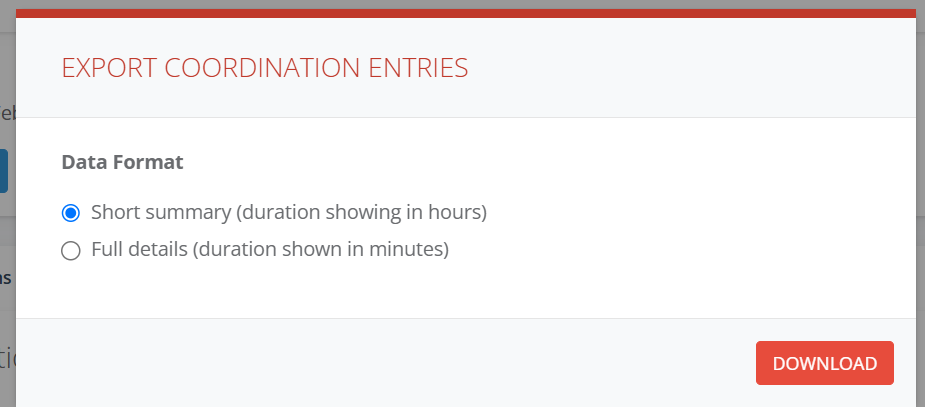
- Short summary includes only the data needed for the NHVic survey, in hour units, with Calculated and Adjustment hours combined into a single value.

- Full details includes more detailed data, in minute units, with Calculated and Adjustment hours kept separate. For the Activity Sessions tab, this includes: Entry ID, Account ID, Year, Month, Activity ID, Activity Name, Num Sessions, Calculated Minutes, Manual Minutes, Prepared Minutes, and Total Minutes.

Tips or notes
- Refresh applies to whichever tab you're on — refreshing Activity Sessions doesn't also populate Services or Coordinations. Make sure you refresh each tab individually.
- The Manual Adjustment field adds to the Calculated Hours rather than overriding them. If a row shows 8.00 Calculated Hours and you enter an adjustment of 0.50, the Total will show 8.50. In the Full details export, this appears as Manual Minutes alongside Calculated Minutes, kept as separate columns rather than combined.
- Suggested Preparation Hours is currently calculated as a flat 20% of Calculated Hours. It's shown for reference only — it doesn't fill in the Preparation hours field automatically, and it isn't yet configurable per centre or per activity. If you want to use it, you need to enter it into Preparation hours yourself.
- You can remove a row from the report using the x icon next to it, if a service or activity shouldn't be included for that month.