
This guide outlines the end-to-end workflow for Social Planet administrators to process online booking requests, from initial email notification through to manual session allocation and status finalisation. When a person books online, you will receive an email notification.
Select here if you need to set up activity email notifications.
1. Email Overview
Upon receipt of a new booking, Social Planet sends a summary email to your support address (e.g., support@socialplanet.com.au). This notification serves as an administrative prompt to review and process the request.
- Select Here to be sent to the Request tab in Social Planet's Activity Summary to process the booking.
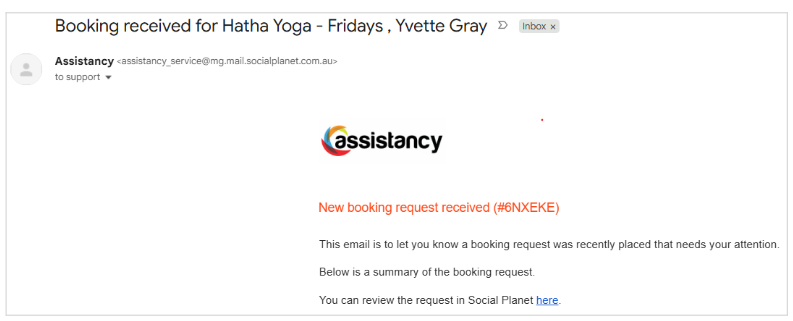
Key References for the Email Notification
Information Reference No: A unique 6-character alphanumeric code (e.g., #6NXEKE) used to track the specific request.
Booking Date: The exact timestamp when the client submitted the request.
Status: The email indicates the request "needs your attention" and requires a review.
Activity: Session name (e.g., Hatha Yoga), date, and outlet location.
Client Info: Name, email, and mobile number.
Selection: Fee type, number of participants, and total cost
2. Request tab
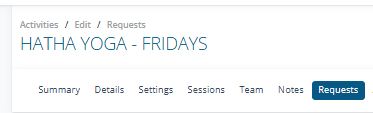
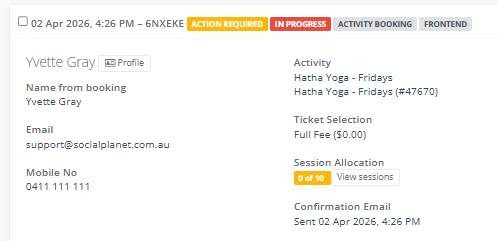
An Activity Booking Tile will summarise the client's information and the specific actions required to finalise the booking.
The Card shows the Reference No: 6NXEKE, submitted on 02 Apr 2026 at 4:26 PM
Status Indicators (Red): NEW and IN PROGRESS labels signify a recently submitted booking that requires administrative review.
The grey labels show that its an ACTIVITY BOOKEND and FRONTEND Indicates an online booking submitted directly by a client. (BACKEND Indicates the booking was manually entered by staff).
To understand what the Client Status Labels mean select Here
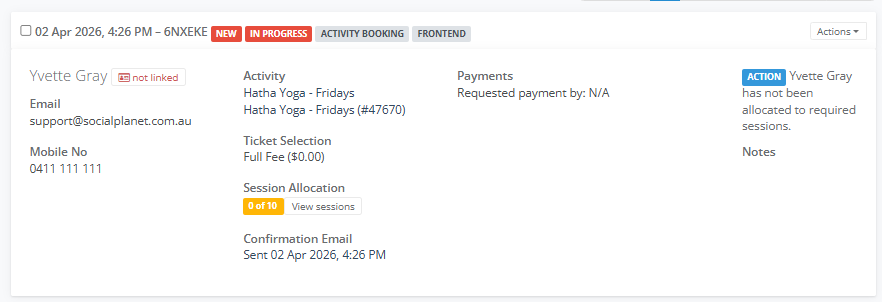
Card Details includes the client name ie Yvette Gray
Link Status: Currently "not linked," meaning this person may not yet have a permanent client record in your database.
Contact: Email is support@socialplanet.com.au and mobile is 0411 111 111
Activity & Allocation
Activity: Hatha Yoga - Fridays (Internal ID: #47670).
Ticket Selection: Full Fee.
Session Allocation: Currently 0 of 10. Action Required: You must manually allocate the client to the specific sessions they will attend before the booking is complete.
Payments & Communications
Payment Status: N/A (No online payment was requested or processed at the time of booking).
Confirmation Email: An automated receipt was sent to the client on 02 Apr 2026 at 4:26 PM.
Required Action
You must click "Actions" or "View sessions" to allocate Yvette Gray to her required classes.
3. How to Link a Client Record
The Link Client process ensures that booking data is correctly associated with a specific individual in your database.
This is critical for maintaining a single, accurate client record.
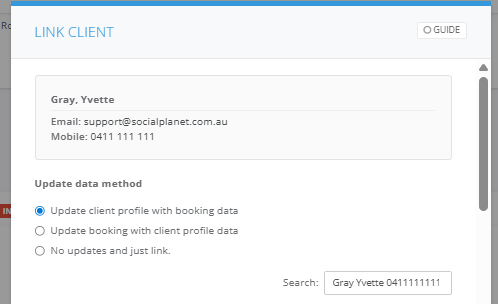
When selected, the Link Client window will appear
1. Identify Existing Clients
The system automatically searches for matches based on Name, Email, and Mobile Number.
2. Choose an Update Data Method
When linking to an existing record, you must decide how to synchronize the information:
Update client profile with booking data: Best if the client has provided new contact details (e.g., a new mobile number) in this booking request.
Update booking with client profile data: Use this to overwrite any temporary booking info with the official data stored in their main profile.
No updates and just link: Simply connects the booking to the client without changing any existing contact information.
3. Match booking to existing Client
Matches Found: If a match exists, it appears as a "Client Card" displaying the stored details.
Click on Select for the booking to be assigned to an existing profile.
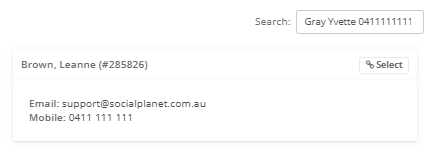
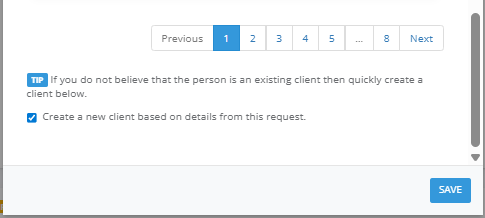
- No Match: If the person is not in your system, scroll to the bottom of the window and check the box "Create a new client based on details from this request" before clicking Save.
4. Allocate Sessions
The NEW label will change to ACTION REQUIRED
In Session Allocation select on View Sessions
In the Allocate Sessions click on Select All
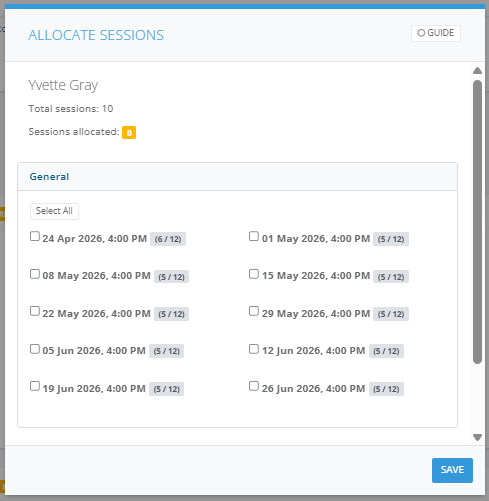
- Once selected select Save
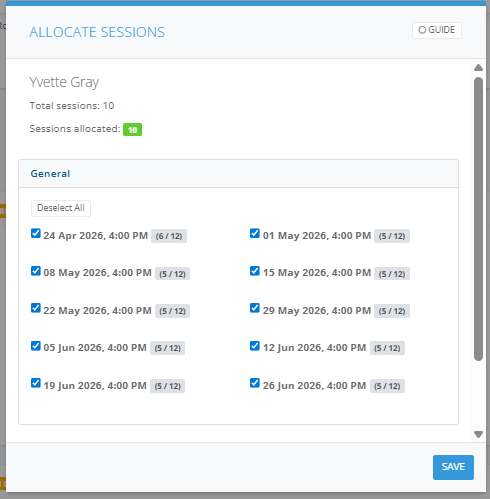
- Shows Total sessions: 10 and Sessions allocated: 10
- Green shows that the ticket package of 10 matches 10 sessions
- Select Save
4. Update Status of Booking
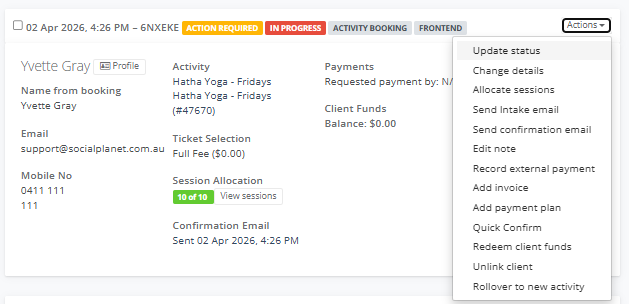
- Go to Actions select Update Status
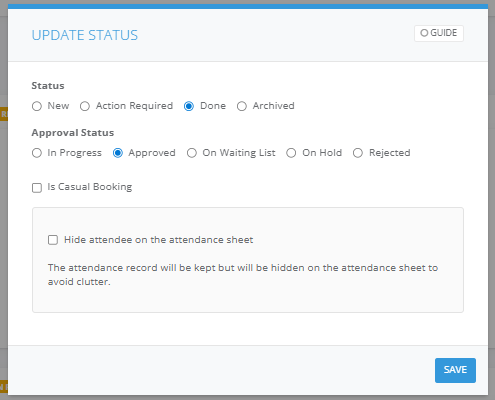
- Go to Status - Done in Approval Status - Approved, then select Save
Related Articles
How to Collect Data Exchange (DEX) Information During Intake
Adding an Invoice to a Booking