
For all paid activities, an invoice must be generated to complete the booking process. The system handles this in two ways based on the payment method:
Credit Card Payments: The system automatically generates an invoice and marks it as "Paid" upon successful transaction.
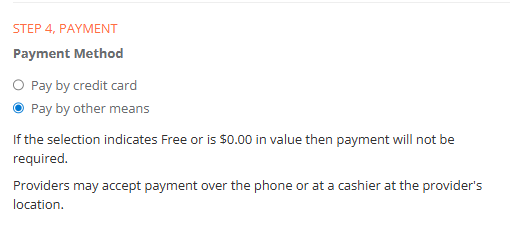
Manual Payments or Expressions of Interest (EOI): If a user selects "Pay by other means" or submits an EOI, both the ticket and the invoice must be manually added to the record to finalize the booking.
TABLE OF CONTENTS
Steps for Pay by Other Means
1. When a person in the Booking Process chooses Pay by other means
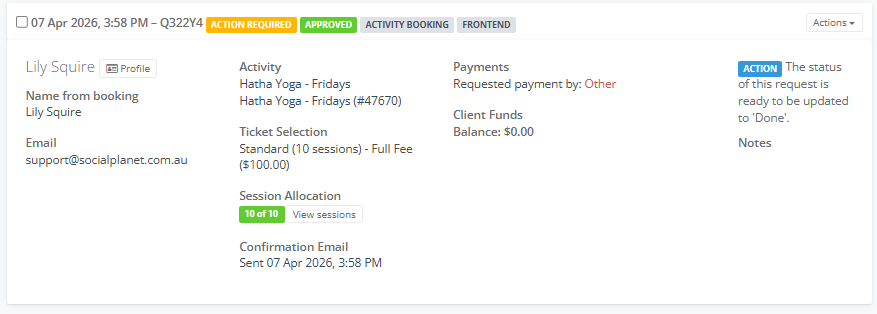
2. Once a booking has been processed, see article Managing Online Bookings for your Centre Activities
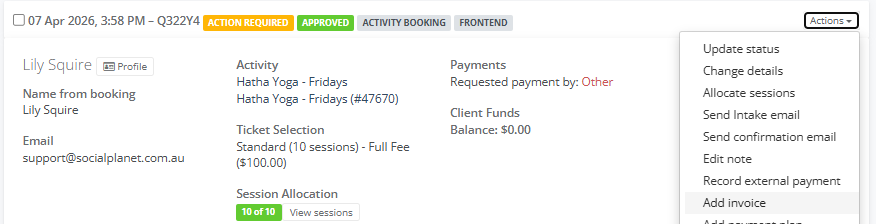
3. Go to Actions then select Add Invoice
4. The Add Invoice window will be displayed, showing the ticket description, GST and Amount.
Sessions appear on invoice as select -
- All sessions as a single invoice item - default option
- Each session as a separate invoice item
- Each session as a separate invoice item and hours quantity
When an NDIS Support Item is chosen an invoice can be sent to a person's Plan Manager. See the article How to Setup and Invoice NDIS Participants
5. Assign items to: A New Invoice - default option. If the person has multiple bookings and wants only one invoice choose An existing invoice
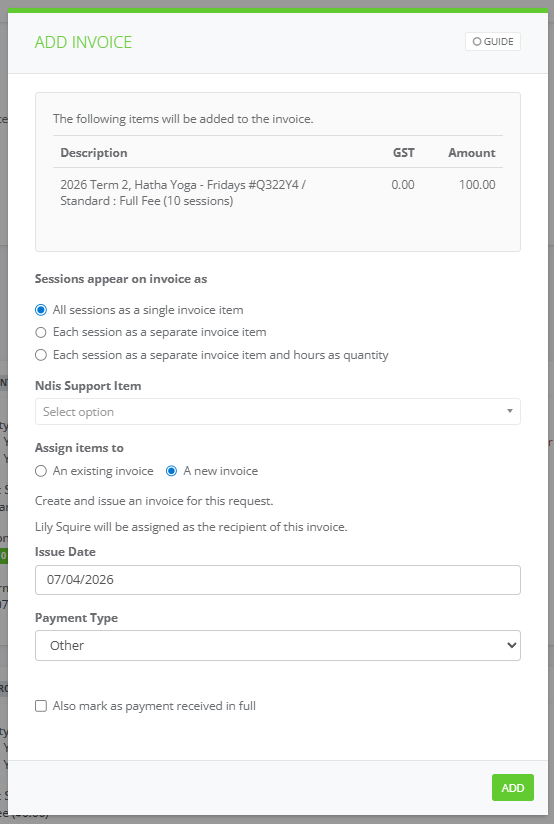
6. The Create and issue an invoice for this request. It will display the person's name who made the booking eg Lily Squire.
7 The Issue Date is the date when the booking was made.
8. Choose Payment Type from the drop down.
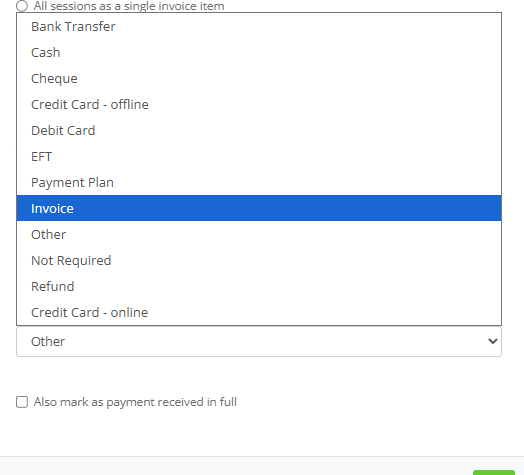
9 If the person has already paid Tick - Also mark as payment received in full.
10. Select Add
11. The Invoice will appear in the booking tile as a Tax Invoice unissued (it has a draft status with no invoice reference number) along with an Unpaid and Unsent status. See article Using invoice as a payment method
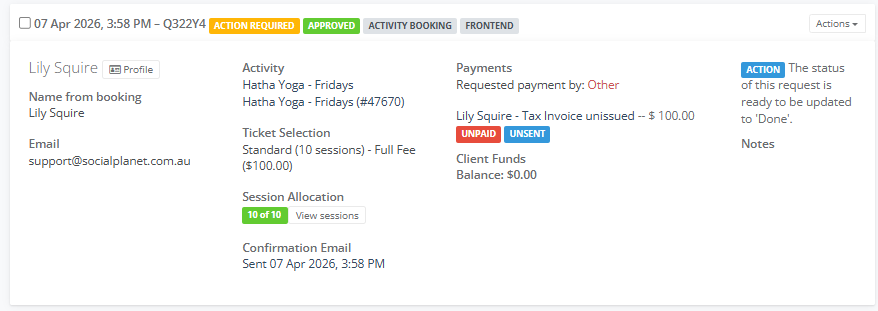
Steps for Expression of Interest
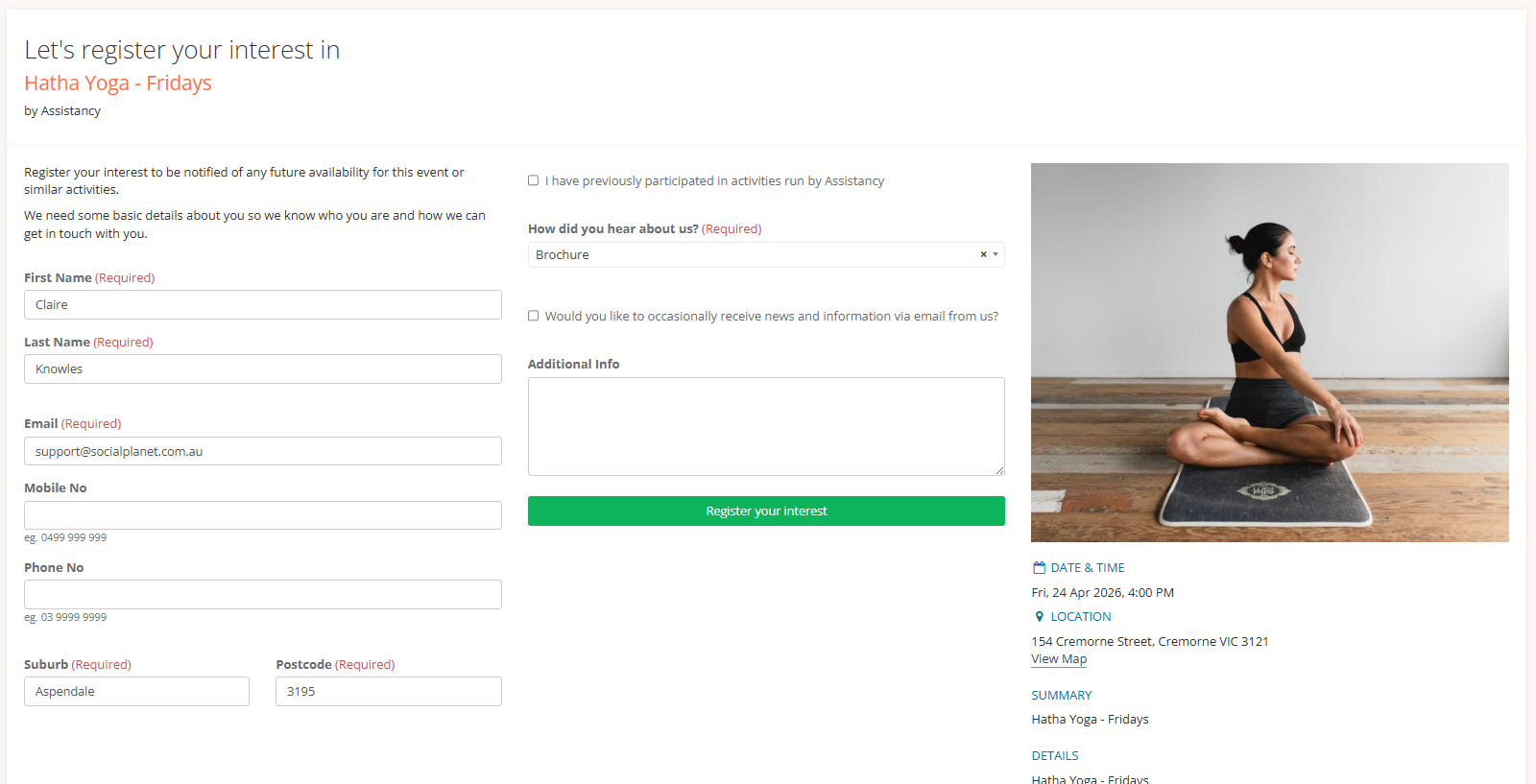
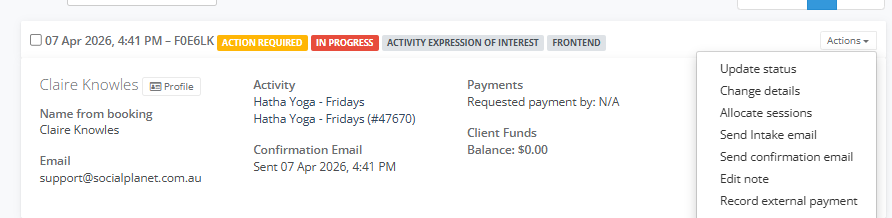
1. The Booking tile will show ACTIVITY EXPRESSION OF INTEREST and Payments will show Requested payment by: N/A
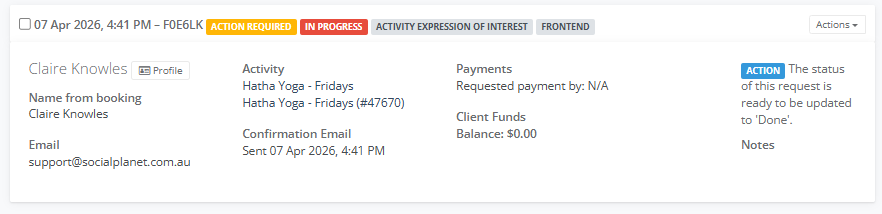
2. As no ticket has been assigned to the booking. Go to Actions select Change Details
3. The Change Request Details window will be displayed. Under Booking Type choose Booking select the paid ticket ie Full Fee enter an amount in the Number of people in this request
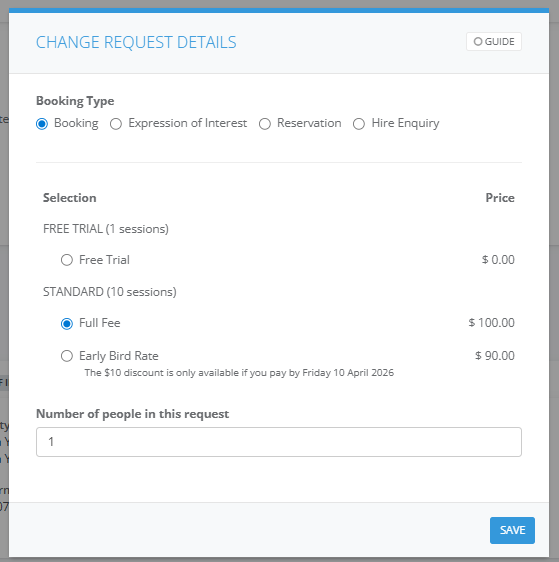
4. Select Save
5. Follow steps for Pay by Other Means from the top of the article.