Overview
Broadcast Message lets you send the same message — by email, SMS, or both — to everyone attending a session, and to the staff working it, in one go. Use it for things like term updates, session reminders, or general notices to families and team members.
Before you begin
- You'll need access to the Attendees tab of an activity.
- Broadcast Message currently starts from a specific session, so make sure you're looking at the right session date before you begin.
- Staff will only appear in the broadcast if they've been added to the activity's Team tab and assigned to that session date.
Steps
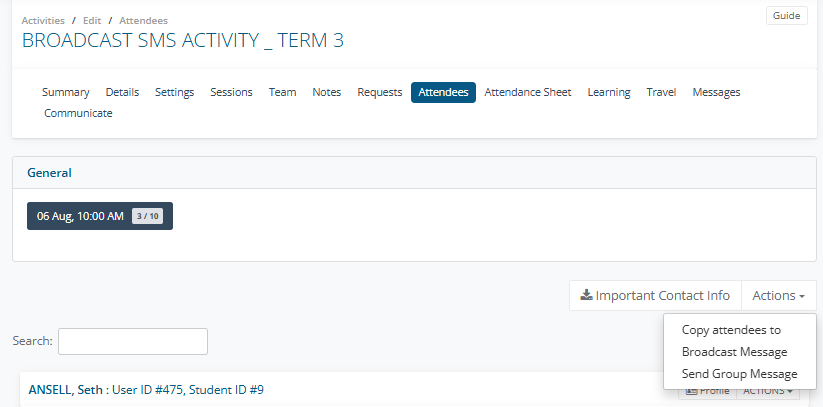
- Go to Activities, open the activity, and click the Attendees tab.
- Select the session you want to send the broadcast for.
- Click Actions, then select Broadcast Message.
- Review the Team and Participants lists.
- Everyone is selected by default.
- Team only appears if staff are on the Team tab and assigned to this session date.
- Participants shows each client's primary contact (or their first available contact) with name, email, and mobile.
- Tick or untick Send via Email and Send via SMSfor each recipient as needed.
- A green dot in the Ready column means a valid email or mobile number is on file for that recipient.
- If no mobile number is on file, the SMS option will be disabled and marked no mobile set.
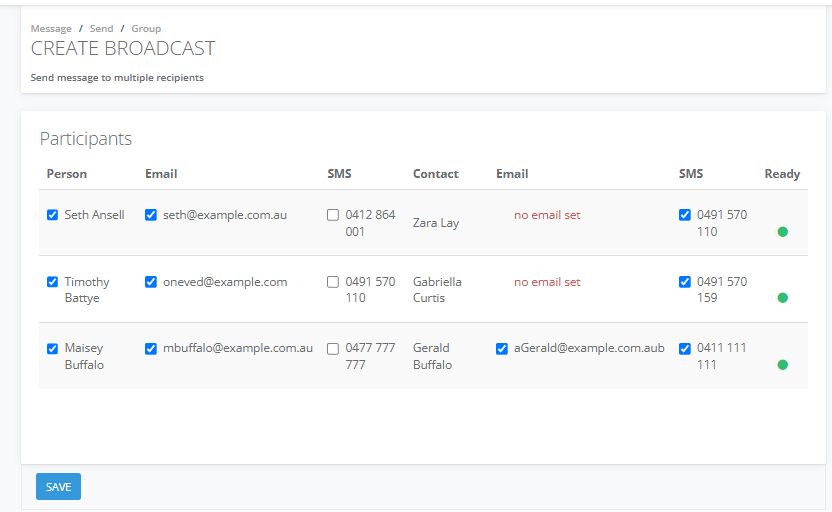
- Click Save to move to the message editor.
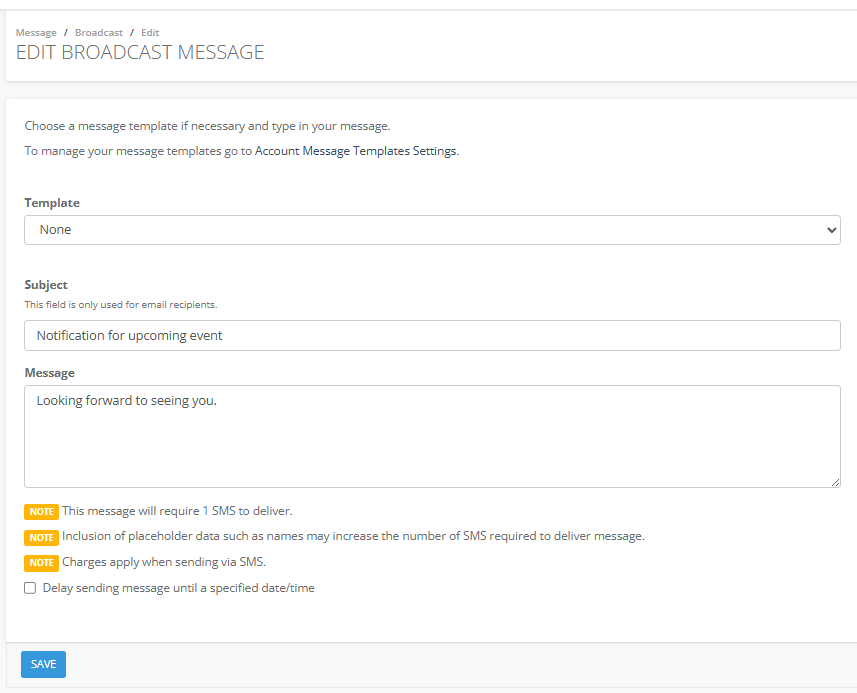
- On the Edit Broadcast Messagescreen:
- Choose a Template if you have one set up, or leave blank to write your own message.
- Enter a Subject (this is only used for email recipients).
- Write your Message.
- If you'd like to send later rather than immediately, tick Delay sending message until a specified date/time and choose when.
- Click Save to move to the review screen.
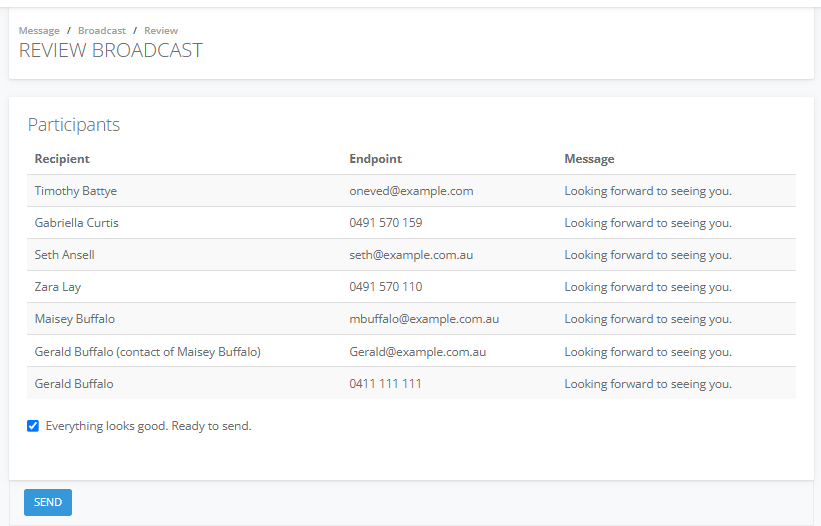
- On the Review Broadcast screen, check the preview of every message that will be sent, listed by recipient.
- Tick Everything looks good. Ready to send. The Send button will then appear.
- Click Send.