The Case File acts as a container for your sessions and client data
Navigate to the Main Menu and select Case File.
Select Add Case File
In the configuration window, enter the following:
Status ie. select Open
DEX Case ID ie. Leave Blank. The system will automatically generate a unique, non-identifiable ID
Outlet Activity: Choose your specific program (e.g., Healthy Living Centre)
Client Attendance Profile Select the relationship type (e.g., Family or Peer Support Group).
Name Give the case a descriptive title (e.g., Housing Assistance).
Overview ie. Briefly describe the goal (e.g., Apply for Social Housing).
Select Add
Go to the Client tab
Select Add Client
Add Client window, define the client's entry context:
Select Participant ie Choose the specific individual to add
Referral source Identify who referred the client (e.g., Health agency)
Primary Reason for Assistance Select the main outcome domain (e.g., Housing).
Other Reasons for Assistance ie. elect secondary needs (e.g., Material Wellbeing).
7. Select Add
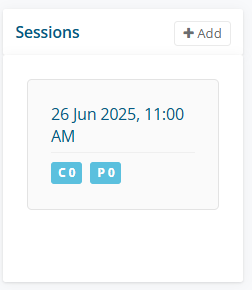
Sessions link your daily activities to formal reporting and outcome measurements.
Go to the Sessions tab
In the Sessions pane, select + Add
Enter Session ID ie unique number
Date / Time ie 26/06/2025 11:00 am
Duration ie 90 min
Select Add
Select on the Session, move cursor select on the session date
In the Participants pane select +Add
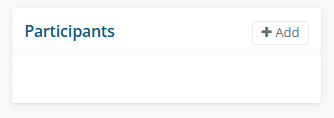
The Sessions Participant window will be displayed
In Participants select either Client or Support Person
Enter Internal Referral
Enter External Referral
Select Add
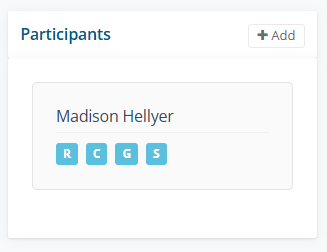
Select on the person’s name ie Madison Hellyer
Scoring is the tool that transforms your daily activity into measurable evidence of how a client's life has actually improved
The Assessment pane will be created
In the Participants pane labels will show R - Referral (Blue means Complete), C - Circumstances, Goals and Satisfaction (Red means yet to complete)
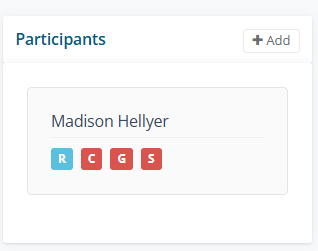
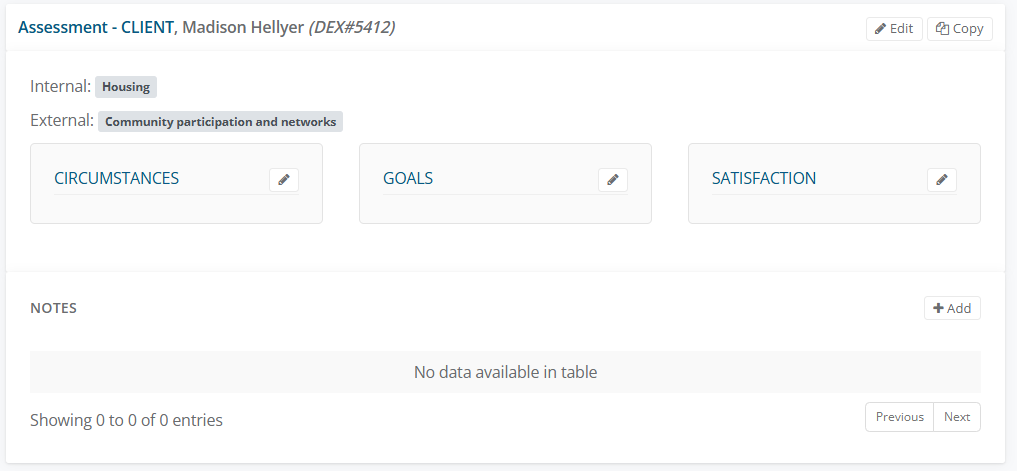
To SCORE select the pencil for
Circumstances, enter a Pre-session and Post-session for relevant domains
Goals, enter a Pre-session and Post-session for relevant goals
Satisfaction, enter the relevant Listened, Received, Improved indicators and
Assessed by ie.SCORE directly - practitioner
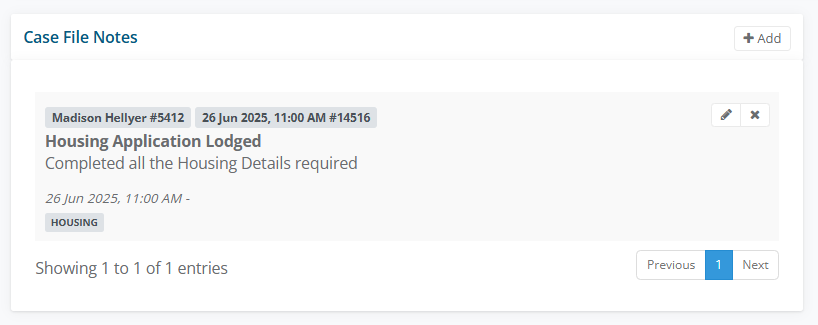
Notes, to record select the + Add

The Add Participant Notes Window will be displayed, enter
Date/time ie 26/06/2025 11:00 am
Title ie Housing Application Lodged
Description ie Completed all the Housing Details required
Labels type and press enter ie Housing
Select Add
Go to the Notes pane
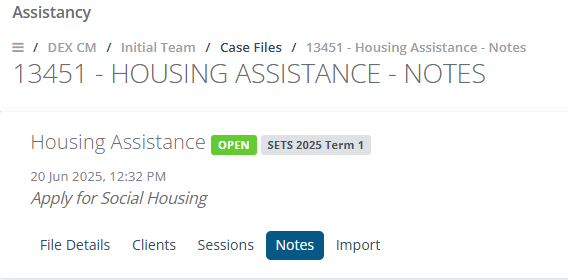
Case File Notes History will be displayed. Select on pencil to edit or x to delete