
Use the group message feature to contact everyone booked into an activity — for example, to notify them of a cancellation, change of venue, or session reminder.
1. From the Frontdesk, go to the Activities header and select Current.
2. In Search enter the activity name and click Edit. 
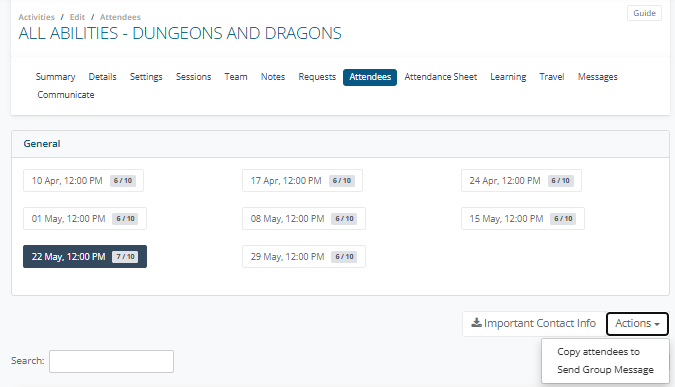
2. Select the Attendees tab, on the right-hand side of the screen, click the Actions button, then Send Group Message.
3.The Send Group Message page will open, listing all attendees. Each person's preferred contact method — email or SMS — is already ticked based on their profile settings.
4. Review the list. You can adjust the Send via Email or Send via SMS checkboxes for individual attendees if needed.
5. Enter a Subject (this is only used for email recipients).
6. If you have message templates set up, select one from the Template dropdown - this will pre-fill your message. Otherwise, leave this set to None.
7. Type your message in the Message field.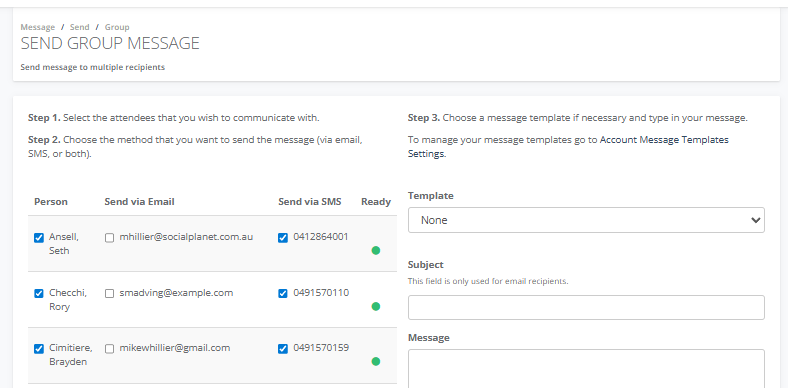
8. If you want to send at a later time, tick Delay sending message until a specified date/time, enter the date and time in the Scheduled Date/time field, and add a note in Reminder reason for scheduling message.
9. Click Send.
Tip: The green dot in the Ready column means the attendee has a valid email or mobile number on file. If a dot is missing, check the client's profile and update their contact details before sending.
Tip: Don't have templates set up yet? See How to set up a templated message to send to clients to get started.
Note — SMS costs: Sending via SMS uses SMS credits. Including personalisation such as a client's name may increase the number of SMS credits required to deliver the message. Check with your manager if you're unsure about your centre's SMS usage.