
The Client Intake Form is used to register new clients into Social Planet. Each program at the centre has its own form type, which collects the specific information required for that program.
Once submitted, the intake record appears in the Client Intake List where it can be reviewed, edited, and approved. Approving the intake creates the client's profile in Social Planet.
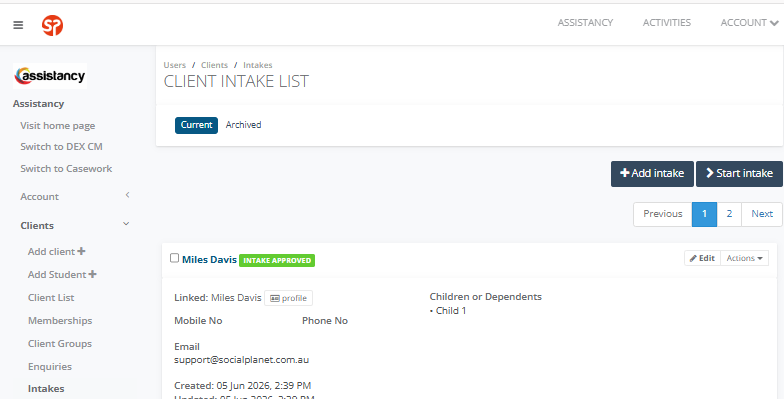
1. Go to Clients > Intakes and select Start Intake
2. Select the Form Type for the program
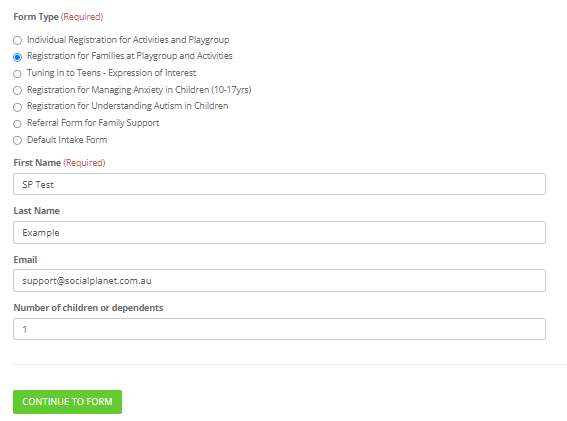
Choose the form that matches the program the client is attending:
- Individual Registration for Activities and Playgroup
- Registration for Families at Playgroup and Activities
- Tuning in to Teens — Expression of Interest
- Registration for Managing Anxiety in Children
- Registration for Understanding Autism in Children
- Referral Form for Family Support
3. Enter the client's basic details
- First Name
- Last Name
- Number of children or dependents
Select Continue to Form.
4. Complete the form with the client
Work through the form with the parent or client. Sections include:
- Parent / Carer details — name, date of birth, gender, consent
- Address
- Demographic details — country of birth, language, Indigenous status
- Conditions or Special Needs — intellectual/learning, psychiatric, sensory/speech, physical
- Extended demographic details — household composition, employment, income, education
- Additional information — mobile, email, English levels, interpreter required
Use + Add another child to add each child's details separately.
Select Continue when complete.
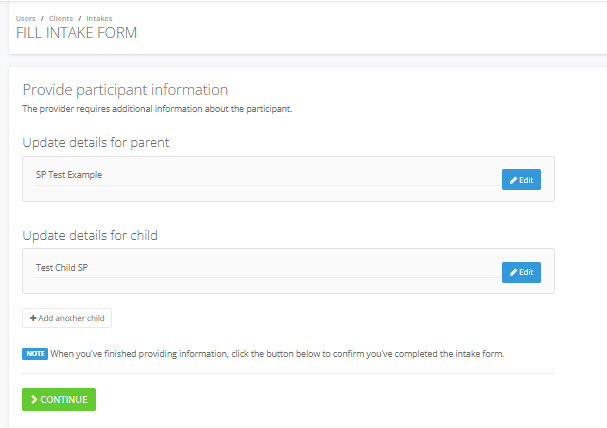
5. Choose how to finalise the intake
At the Fill Intake Done screen, select one of two options:
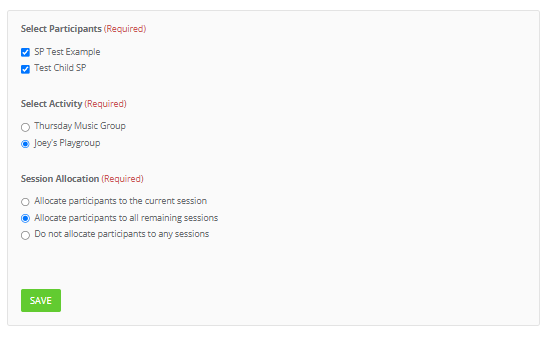
- Add to an Activity — links the client to a program immediately. Select the participants, choose the activity, set the session allocation (current session, all remaining sessions, or none), and select Save. The client appears on the activity's attendance sheet.
- Finish Intake — saves the intake record only. The client will need to be approved from the Client Intake List before their profile is created in Social Planet.

6. Review and approve the intake (Finish Intake path only)
- Go to Clients > Intakes to open the Client Intake List
- Locate the client — their status will show as Intake Form
- Select Edit to review or complete any missing information
- When ready, select Actions > Approve
- The client profile is created in Social Planet
7. Update the client profile
Once the client exists in Social Planet, open their profile to add any additional information:
- Select the client's name from the Attendance Sheet or Client List
- Edit Bio to correct the name if needed (e.g. child registered as "Child 1")
- Go to the Support tab to add medical conditions, food allergies, and mobility aids
- This information appears under Emergency Contacts and Important Info on the Attendance Sheet