
Why do I need to link clients?
Our system prioritizes data accuracy by handling two types of online bookings differently:
- Online Account Bookings: When a client logs into their personal account to book, the system automatically recognizes them. Their booking is inherently linked to their "original" profile, so no manual reconciliation is required.
- Guest Bookings (The Default): To reduce friction, the system allows "Guest" bookings. Because the system cannot verify if the guest is a new or returning client at the time of booking, staff must manually link these requests to ensure a duplicate profile isn't created
The Risk: Data Loss and Fragmentation
When processing a Guest Booking, choosing the incorrect Update data method can lead to:
Data Loss: Overwriting a full street address with partial "Guest" data (e.g., just a suburb/postcode).
Data Fragmentation: Creating a duplicate profile for an existing person, which corrupts your database health
Scenario: The Override Problem
In this example, Paula has an existing profile with her full contact and address details. She completes a "Guest" Expression of Interest which only requires her suburb and postcode.
To process this, navigate to the Activity Summary > Request or Requests > Current tab and in the Client Booking Card select Not Linked.
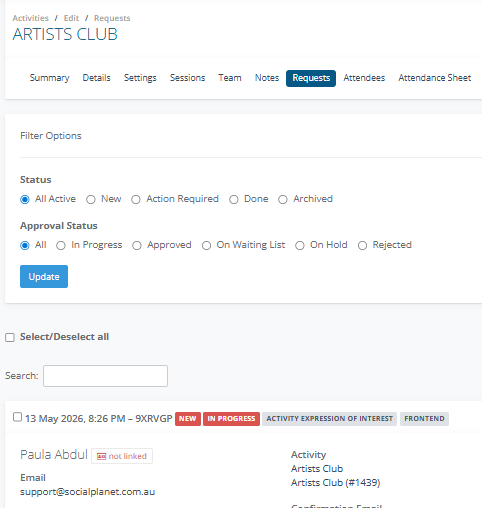
Step 1: Selecting the Update Data Method
In the Link Client window, you must choose how the incoming data interacts with your database
Option | Result | Impact |
Update client profile with booking data |
|
|
Update booking with client profile data |
|
|
No updates and just link |
|
|
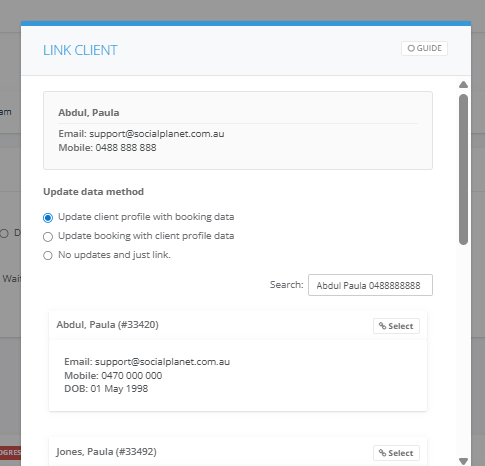
Step 2: Identifying Existing Clients
The system automatically searches for clients who share the same Name, Email, or Mobile.
- If a match is found, use the Select option to link the booking to the existing profile.
- Warning: If you select "Create a new client based on details from the request" for someone who already exists, you will create a duplicate
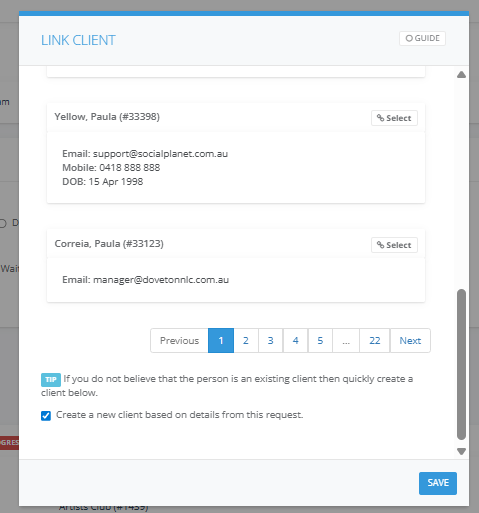
Best Practice for Data Integrity