This article explains how to manage high-demand activities using the Waitlist status in Social Planet, including steps for replacing departing clients mid-term and rolling over waitlisted individuals to future Term activities to ensure fair access to Centre programs.
TABLE OF CONTENTS
- How to Add a Waitlisted Client into a current Activity
- How to Rollover Waitlisted Clients into a future Activity
How to Add a Waitlisted Client into a current Activity
If a spot opens up mid-term, follow these steps to move a client from the waiting list into the active class.
Prerequisites: Before adding a waitlisted client to a current term, ensure you have correctly processed the departing client. See our guide on Removing a Client from an Activity.
To view all clients that are currently Waitlisted.
1. Go to Main Menu select Requests then Current
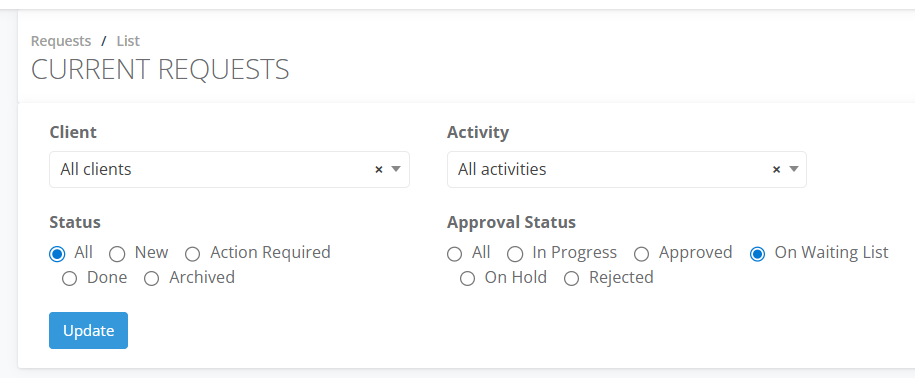
2. In the Current Request pane under Approval Status select On Waiting List then Update
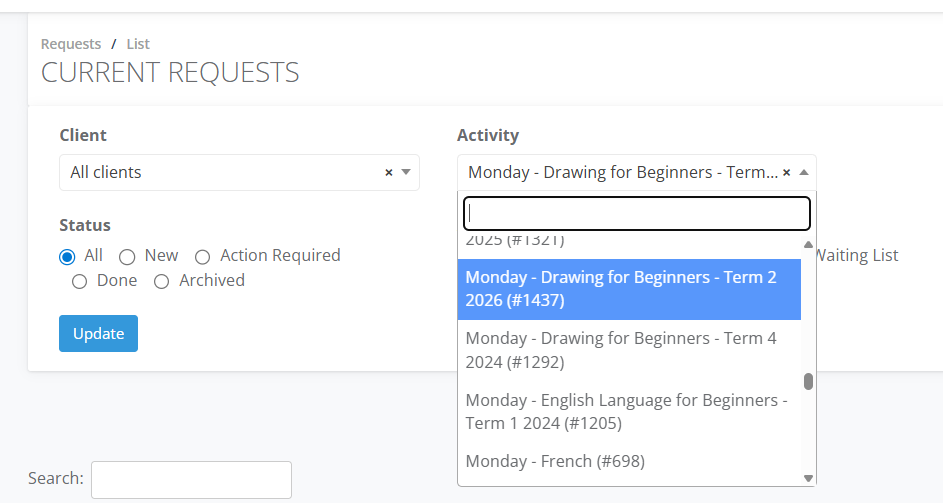
3. To filter clients by a specific class select on Activity drop down and enter the class name then Update
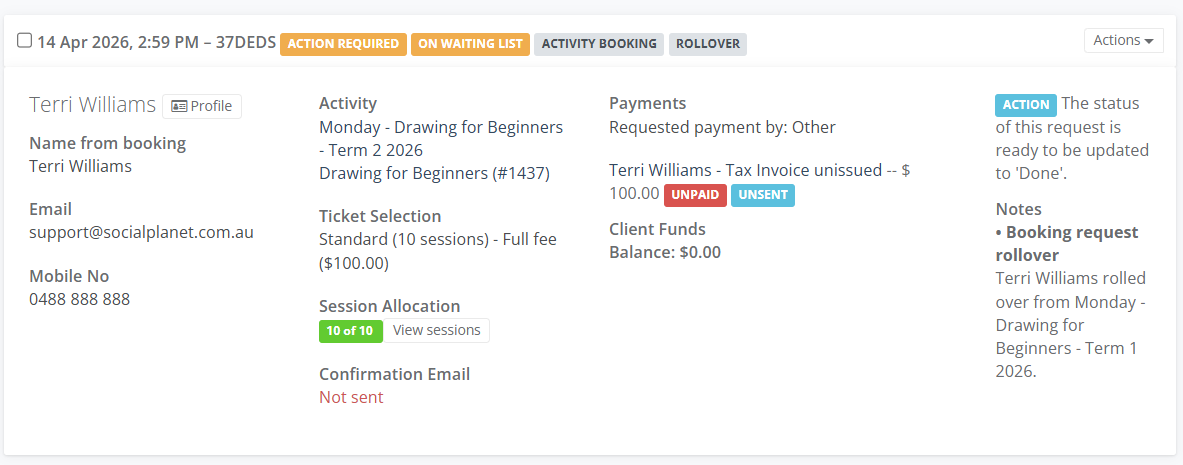
4. Clients will be filtered. On the Booking Card, the ON WAITING LIST and ACTION REQUIRED labels will display
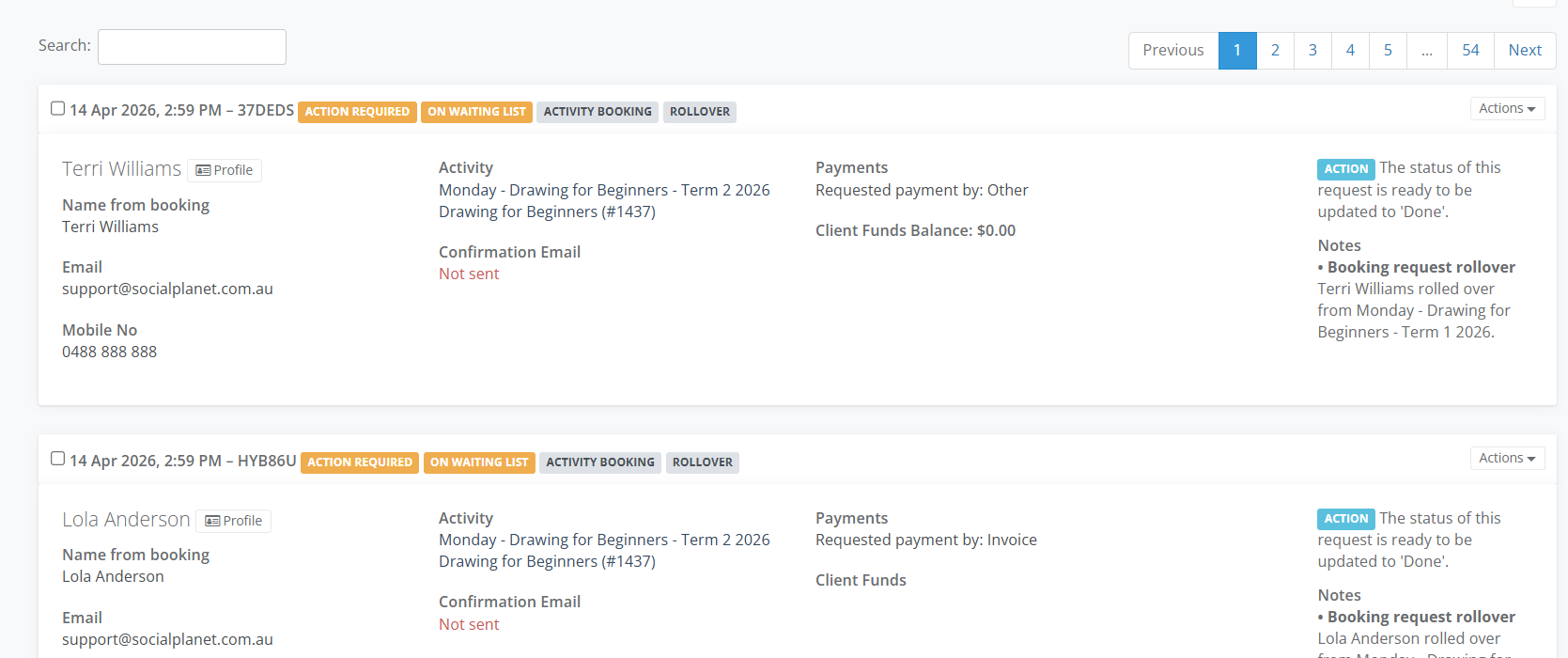
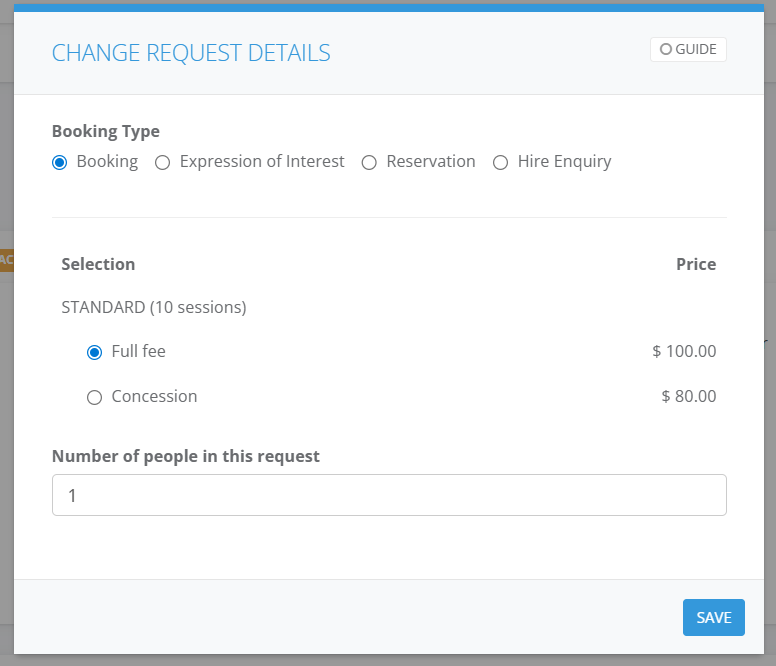
5. If you want to assign the person to the Activity select Actions and Change Details in Booking Type select Booking and the Ticket eg Full Fee and Save.
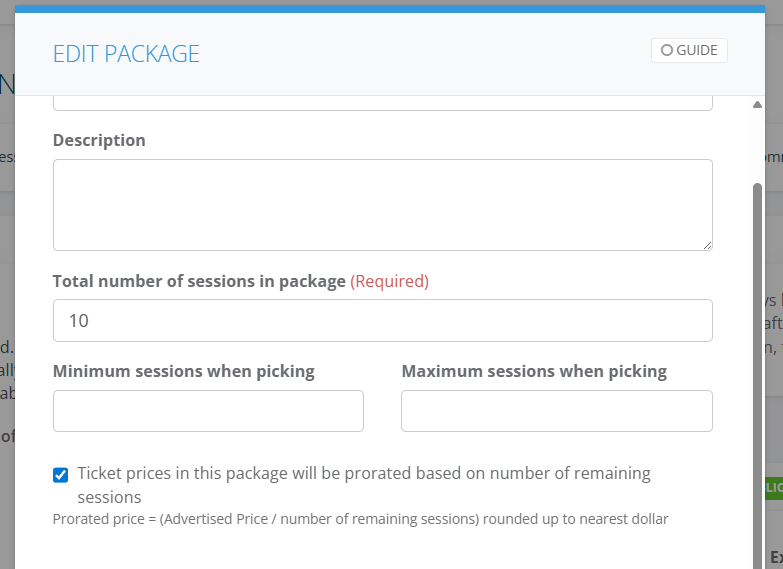
6. IMPORTANT - If the course has already commenced and you want the ticket price to reflect the sessions remaining. Go to the Activity > Settings tab > Edit Ticket Package > Tick - Ticket prices in this package will be prorated based on number of remaining sessions
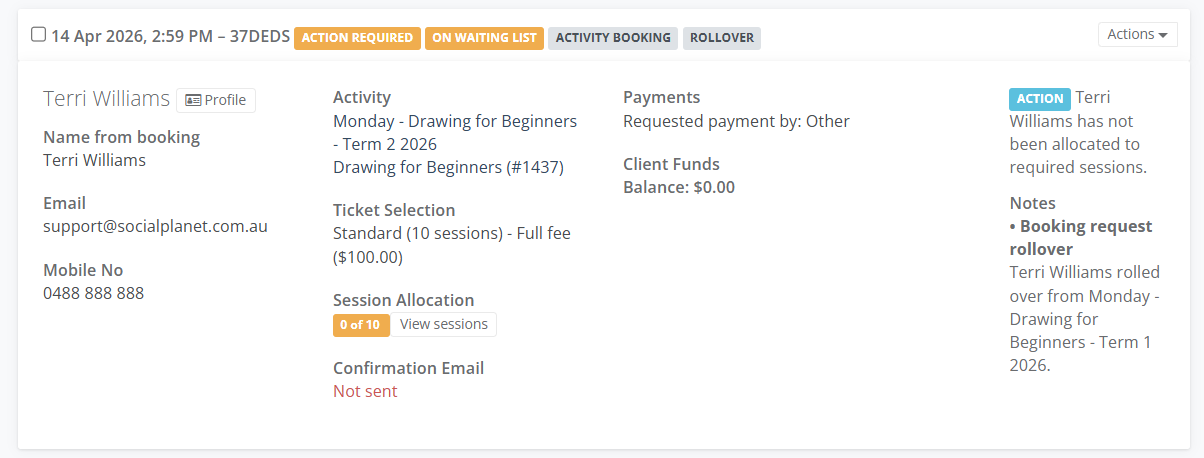
7. Once you've assigned the Ticket, it will be displayed under Ticket Selection eg. Standard (10 sessions) - Full fee ($100.00). The Session Allocation will show 0 of 10, select View sessions and in the View Sessions window allocate the person to the sessions and Add
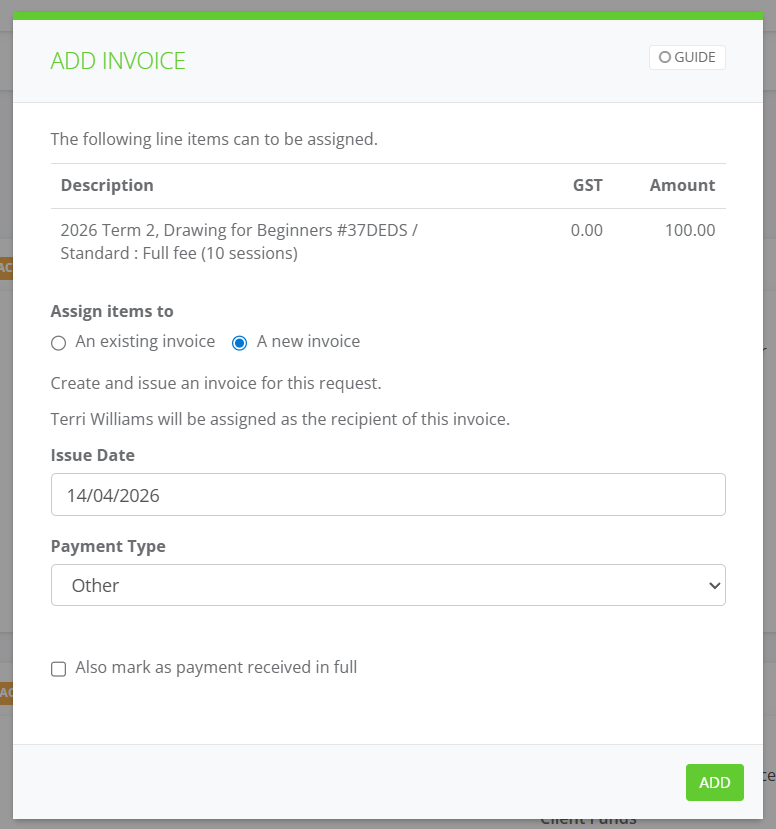
8. Then go to Actions select Add Invoice in the Add Invoice window, review the ticket, select Assign Items either A new invoice or An existing invoice. Review the Issue Date and choose Payment Type eg. cash, online credit card. If they've paid select Also mark as payment received in full. Then Add
9. The invoice will now be added to the booking tile. Go to Actions then Update Status in Approval Status select Approved if they haven't paid, keep the Status to Action Required (as a reminder to follow up) if they have Paid select Done and Save.
How to Rollover Waitlisted Clients into a future Activity
To ensure fairness for those who missed out on the current term, you can "roll over" their request to the next term’s activity
1. Go to the existing Activity where they have been Waitlisted
2. In the Activity Summary > Request tab
3. In the Filter Options pane in the Approval Status select On Waiting List
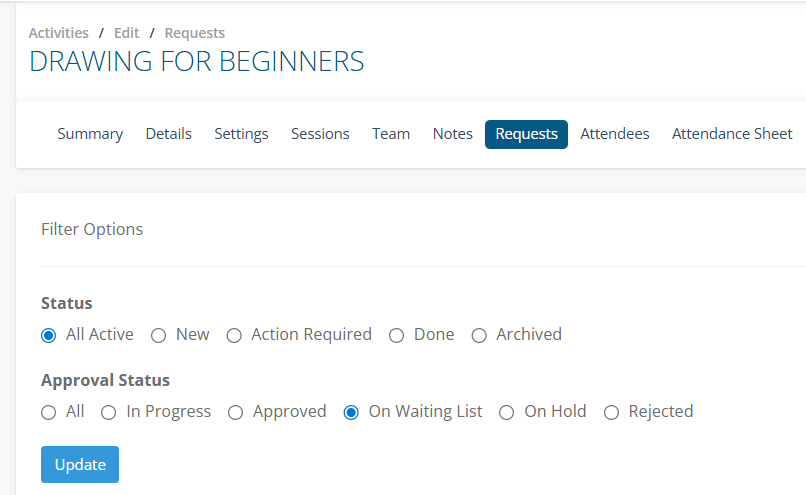
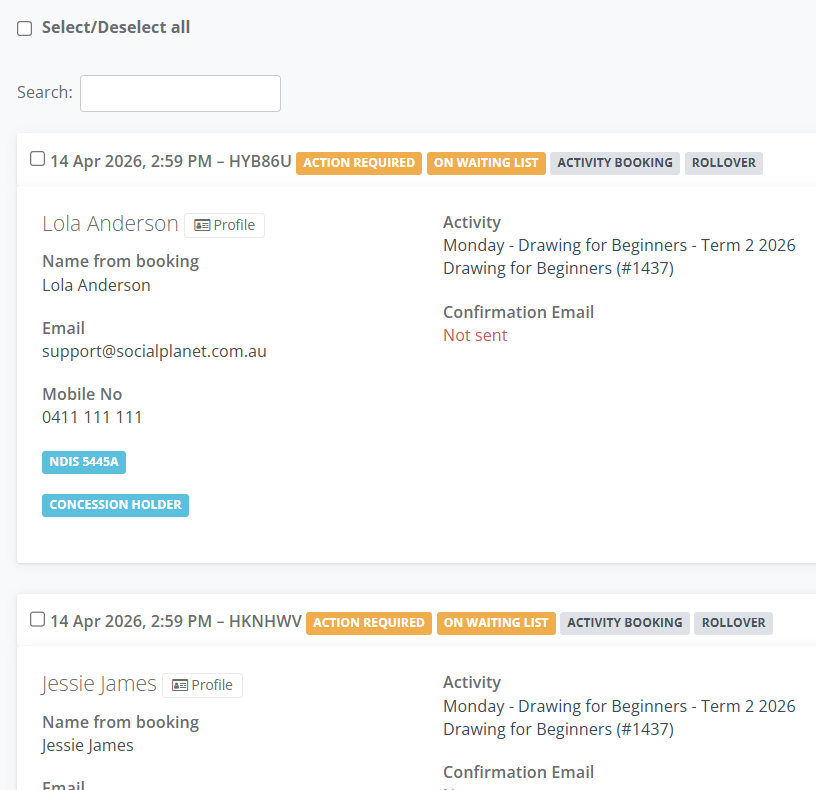
4. If you're rolling all Waitlisted clients from the existing Term to the new Term, then Select/Deselect All
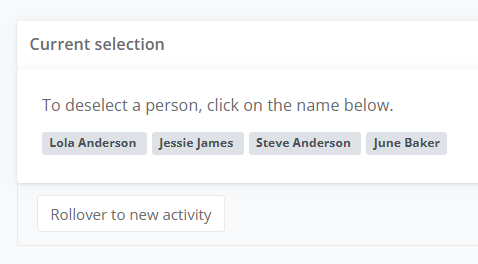
5. Then scroll down to the bottom of the Request page and in Current selection select Rollover to new activity
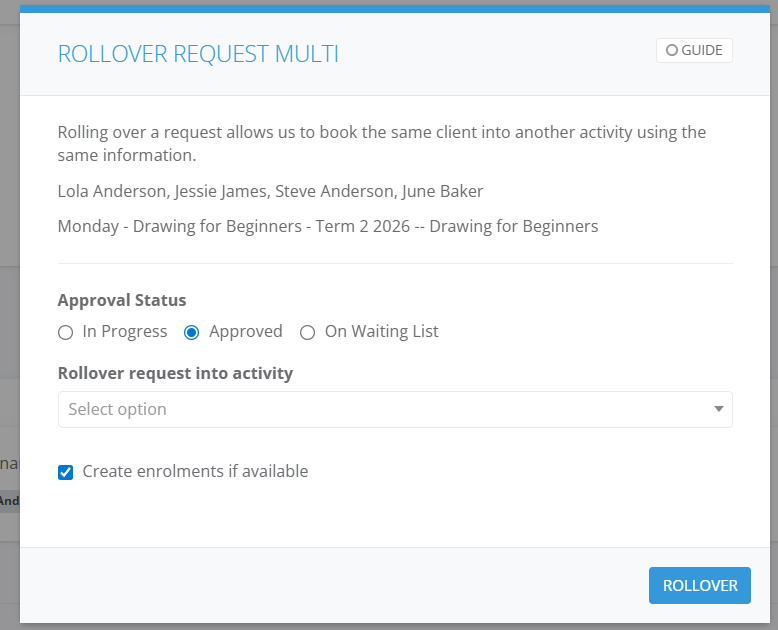
6. In Rollover Request Multiple window. It lists the clients to be rolled over. Select the -
- Approval Status choose Approved or In Progress (this option may be better if payment is required to confirm their spot).
- Rollover request into activity, type in the class name in the drop down and select Rollover. Here are more detailed instructions.