Update an existing invoice to reflect a new activity or class without creating a duplicate invoice or issuing a manual refund.
Note: Use this method if you booked a client into the wrong class but want to keep the existing payment record and invoice number.
Step 1: Locate the Paid Invoice
1. Navigate to the Main Menu and select Payments > Invoices
2. Click the Paid tab
3. In Search enter the Clients Name and click on View
Step 2: Handling Price Discrepancies (Partial Refunds)
4. Check Funds: Ensure the system displays FUNDS AVAILABLE
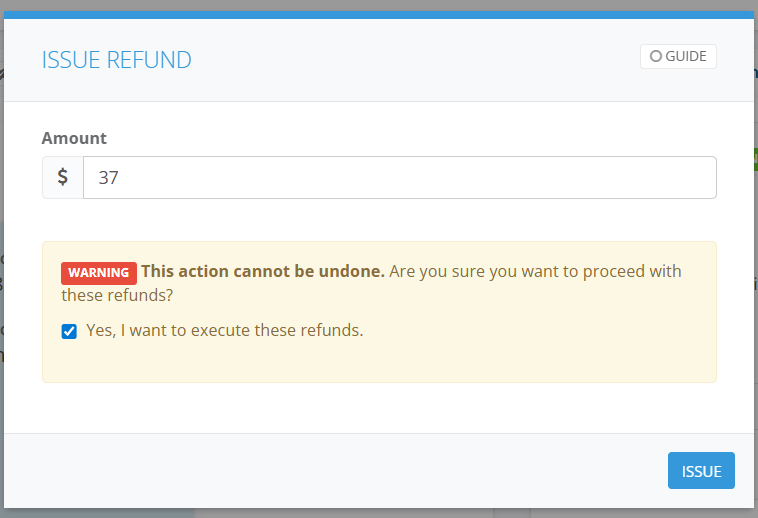
5. Select Issue refund enter the partial refund amount.

6. In Amount enter the refund amount you want to Refund and Tick, Yes, I want to execute these refunds select Issue
Step 3: Edit the Activity Description
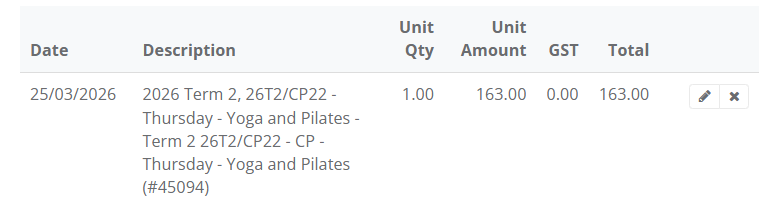
6. Locate the line item for the booking (e.g., Thursday Yoga and Pilates)
7. Click the Pencil icon to open the edit mode
8. Update the Description to reflect the correct activity
Then use the Pencil to edit the invoice line item and change the activity description
Step 4: Update the Financial Ledger
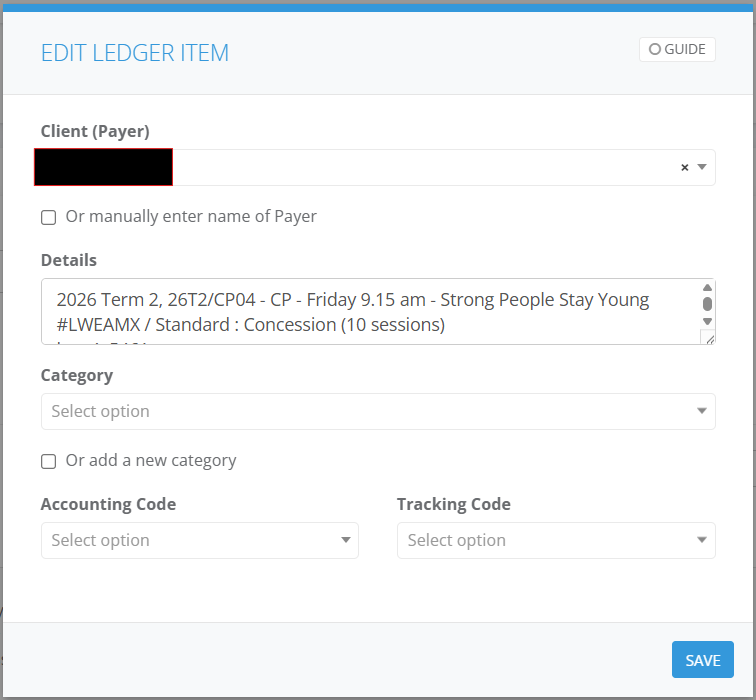
5. Go to Main Menu select Payments then Ledger
6. Enter the client name in Search to bring up the Transaction
7. Select Edit and update the Details in the Edit Ledger Item and select Save