
This guide details how to configure NDIS support items and participant data to ensure accurate invoicing and successful plan claims
Prerequisites
Before creating an invoice, ensure you have completed the following configuration steps:
Enable NDIS Support Items: Navigate to Account > Tags > NDIS Items. Search for the required service by Item Number or Name and move it to the Enabled column.
Update Participant Profiles: Go to Clients > Client List and select Edit for the relevant person. Under the Support tab, ensure Is registered with the NDIS is set to Yes and enter their NDIS Reference No.
Configure Plan Managers (If Applicable): If a client is plan-managed, go to the Contacts tab in their profile to + Add biller. Enter the Plan Manager’s details and select Add
Step 1: Set Up the Activity
Go to Activities and select Add Activity +
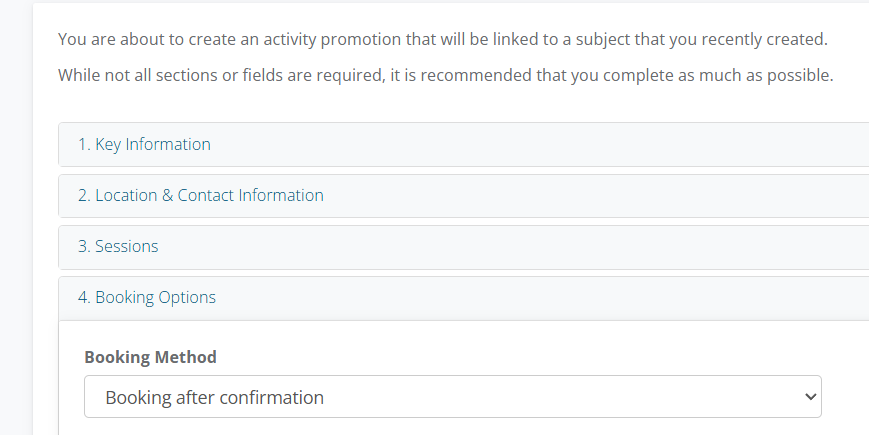
In Booking Options, Booking Method, ensure the Booking Process Type is set to Booking After Confirmation.
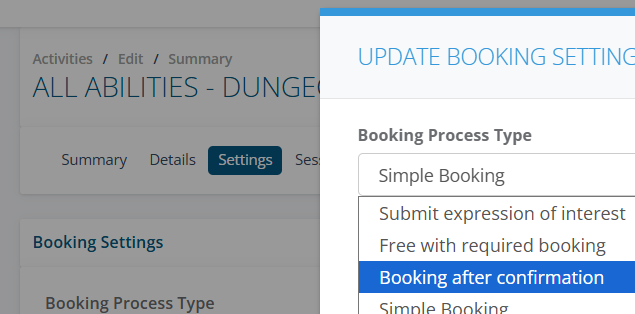
If the Activity is already created. Go to Main Menu click on Activities > Current > Look up Activity > Edit
Go to the Settings tab then Edit Booking Settings
Step 2: Create NDIS Ticket Packages
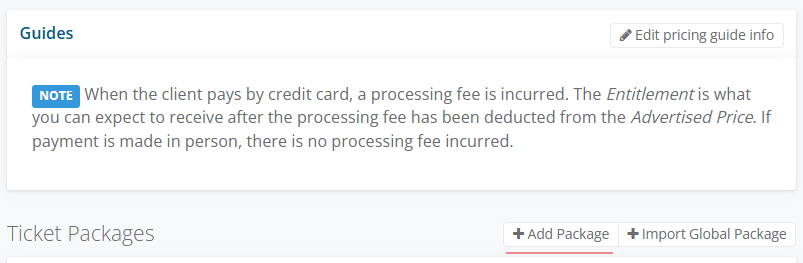
Select + Add Package then enter the Name ie Term 1 2026, Description, Total number of sessions in package to reflect the Sessions of the Class
In the Backend only - only available to staff making backend bookings, select Backend Only
Once the Ticket package has been added select + Add ticket

Calculating NDIS Ticket Prices
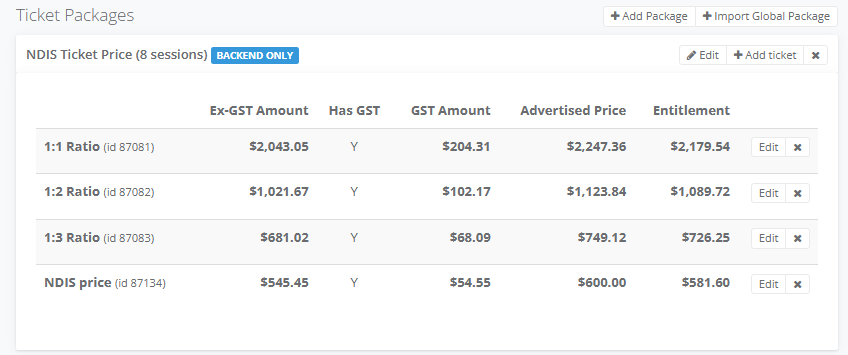
When creating NDIS tickets, you must manually calculate the Advertised Price based on current NDIS Price Guide rates.
For Ratio-Based Pricing: In the Ticket Name, enter the specific group ratio (e.g., "1:3 Ratio").
Calculate the Total: Multiply the NDIS hourly rate by the session duration (e.g., $23.41 x 4 hours = $93.64 x number of sessions for the course $749.12).
For Standard Pricing: If NDIS ratios do not apply, simply enter the flat ticket price in the Advertised Price field.
Finalize: Select Incurs GST if the service is taxable, then click Add.
Step 3: Book the Client
Go to Clients > Client List, find your client, and select Actions > Create activity booking

Search for the Activity and select Continue Booking
Under Purchase Options, select the relevant NDIS Ticket Price and ratio.
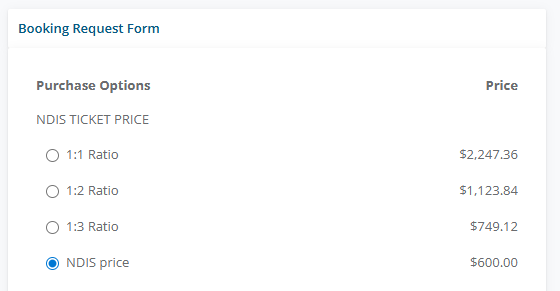
Set the Payment Method to Invoice
Change the Booking Status to Approved, select Allocate Client to All Available Sessions, and click Complete Booking
In the Booking Request select Manage Requests for Activity
Step 4: Generate the NDIS Invoice
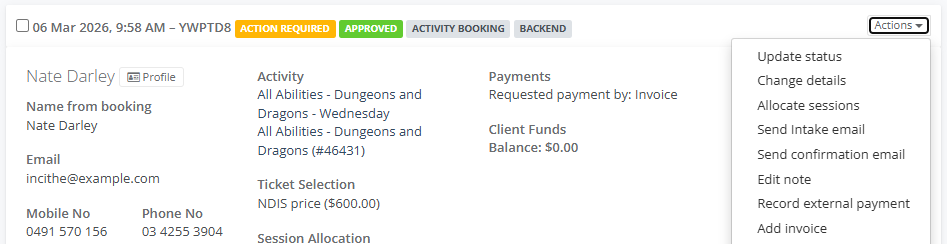
In the Request tab go to the Client Tile, select Actions > Add Invoice
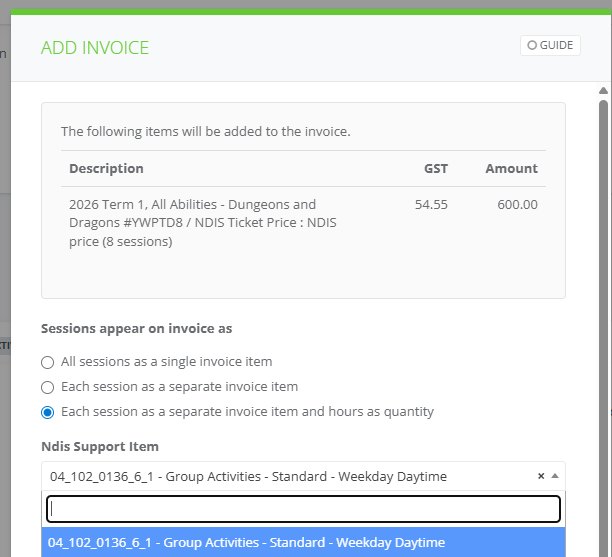
In the Add Invoice window, set Sessions appear on invoice as to: Each session as a separate invoice item and hours as quantity.
Select the correct NDIS Support Item from the dropdown menu.
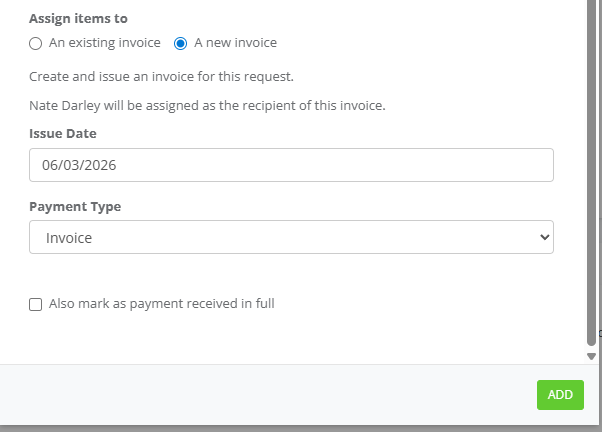
Under Assign items to, choose A new invoice and click Add.
The invoice will now be added on to the Client Activity Tile
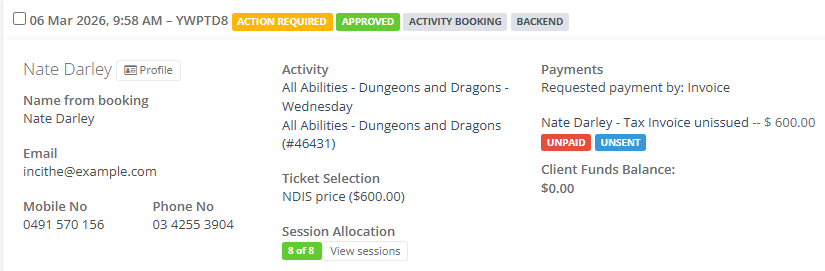
Select on the Tax Invoice and issue.
Step 5: Assign the NDIS Invoice to the Plan Manager
Once the invoice is issued in draft select Edit and and in Bill Recipient drop down assign the Invoice to the Plan Manager.
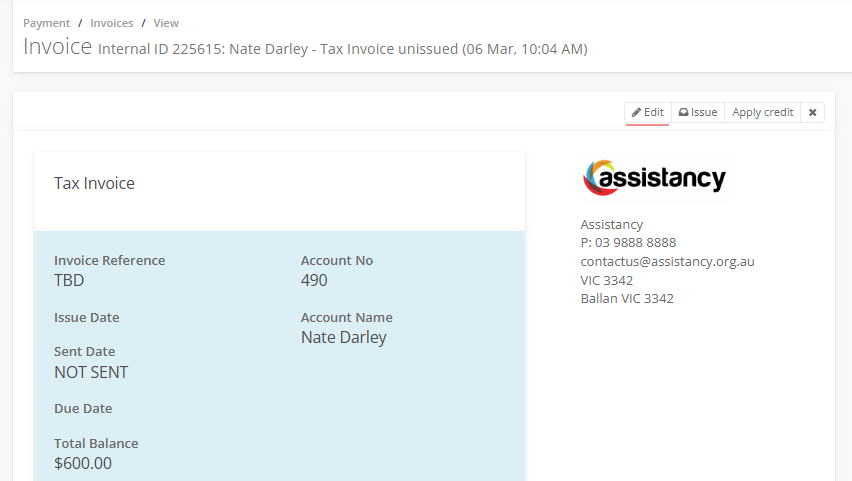
Select on Issue the Invoice.
The Invoice will display the individual sessions, including the NDIS line item, NDIS Client Reference Number
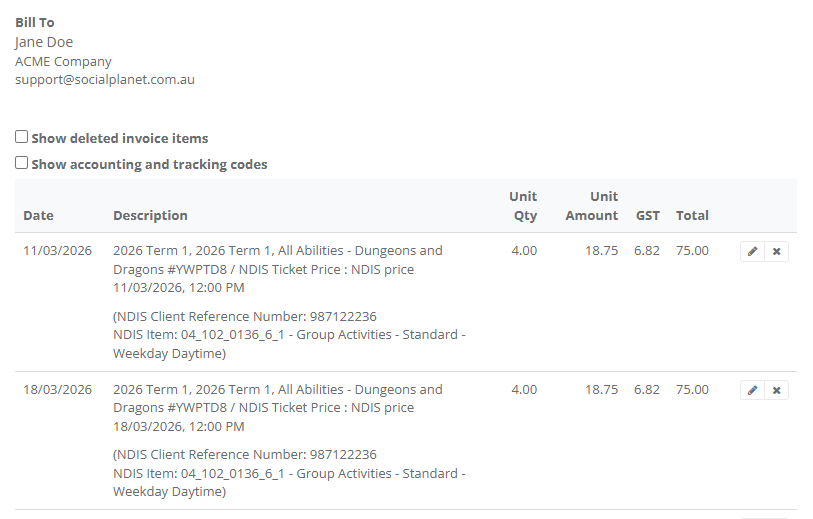
Select on Send to email the invoice to the Plan Manager.
