Use these instructions to verify and record a student's eligibility requirements—such as citizenship status—through the Evidence tab on the client profile. It details the process of uploading documentation, entering witness details, and recording concessional status.
Use our Evidence feature to track these requirements.
1. Contact Social Planet and ask for the Evidence Module to be enabled on your account. Select here to configure Evidence Settings.
2. In the Client Profile there will be an Evidence tab. Go to Main Menu > Clients > Client List > Edit
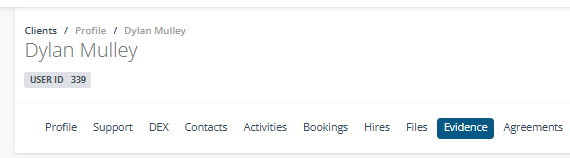
3. Select on the Evidence tab, then click on Add Evidence
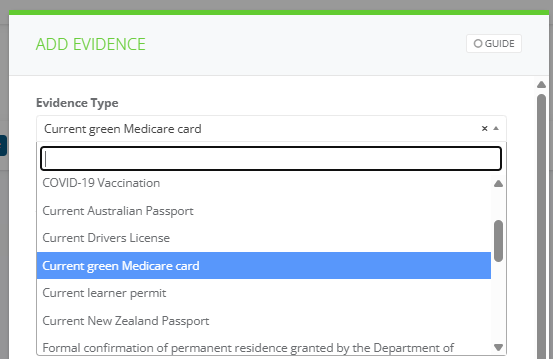
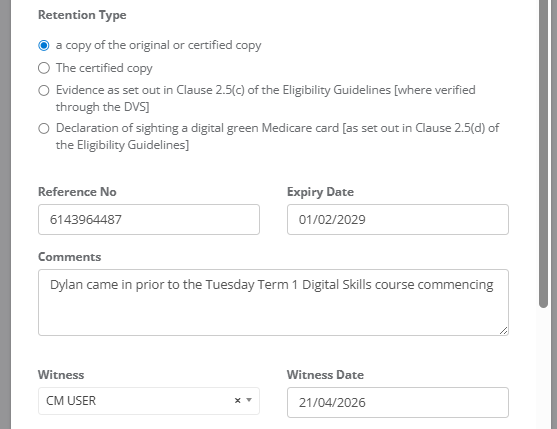
4. Use the Evidence Type select on the drop down eg Medicare Card. Select on the Status eg Verified and Method > Viewing original copy.
5 Enter the Verification Method eg. Viewing an original.
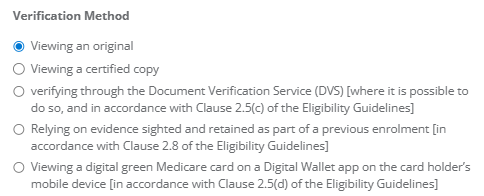
6. In Retention Type select an option ie a copy of the original or certified copy.
7. Enter the Reference No eg. Medicare Card Number and Expiry Date, Comments, Witness and Witness Date
8. If the evidence is proof of concessional status select on Mark as a concession or benefit. Select on the Benefit Type from the drop down list.
9. In Attachment Upload a PDF or Jpeg copy of their Health Care Card as evidence.
10. Tick This evidence will be used to show that this person is qualified to attend ACFE classes
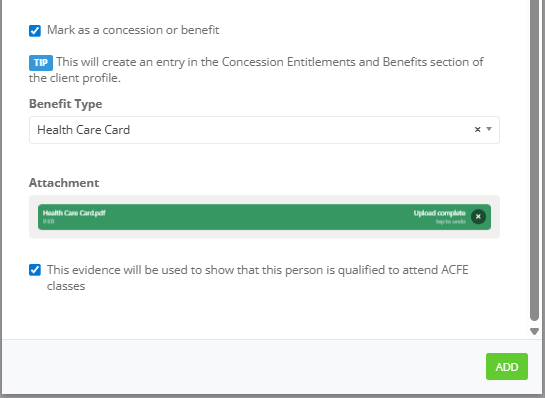
11. Then select Add
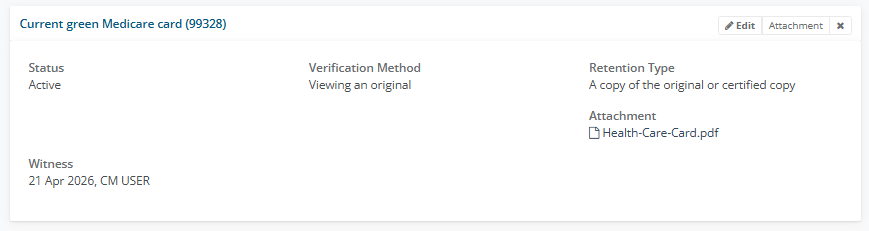
13. An Evidence tile will appear for the Medicare Card. Select Edit to update the information. Select on Attachment to replace the document or x to delete the tile.
13. In the Client Profile > Student Info pane, ACFE Qualification Status will show the green label Qualified.

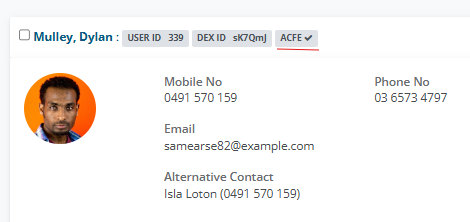
14. An ACFE tick will appear on the Client Tile
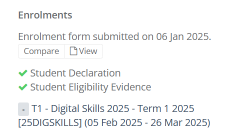
9. In the Class Request tab, under Enrolments, green ticks will display the Student Declaration and Student Eligibility Evidence requirements have been met.