
Overview
The Visitor Sign In Log lets you record everyone who comes through your centre — from drop-in guests to volunteers and students on placement. You can set up more than one log if your centre runs different programs or spaces.
1. From the Frontdesk, select Account in the top menu, then choose Sign-In Log.
2. Click + Add sign-in log. The Add Sign In Log window will open.
3. Choose the log type
Select one of the following:
- Guest — use this for general visitors and members of the public attending the centre.
- Restricted — use this for people who need a personal access code to sign in, such as volunteers or students on placement.
4. Enter a Name
A short label for this log — for example, Front Desk Visitors or Volunteer Log.
5. Enter a Description
Briefly describe what this log is for. This is shown to the person signing in.
6. Enter a Greeting Message
A welcome message displayed when someone signs in — for example, Welcome! Please sign in below.
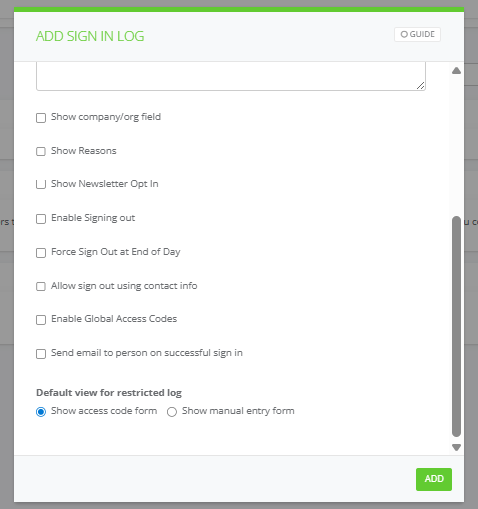
7. Choose your optional settings
Tick any of the following that apply to your centre:
- Show company/org field — asks the person to enter their organisation name
- Show Reasons — lets people select why they're visiting (you'll set up the reason options in a later step)
- Show Newsletter Opt In — gives people the option to join your mailing list
- Force Sign Out at End of Day — automatically signs everyone out at midnight
- Allow sign out using contact info — lets people sign out by entering their contact details instead of an access code
- Enable Global Access Codes - if you want people to use the same code across multiple sign in logs.
- Send email to person on successful sign in — sends a confirmation email to the visitor
8. Set the default view (Restricted logs only)
If you chose Restricted, select how people will sign in:
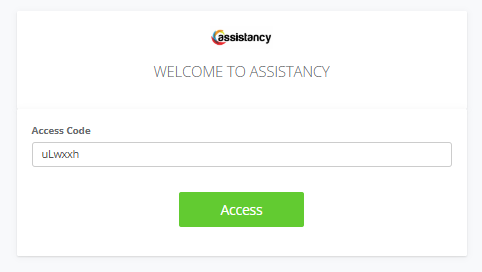
- Show access code form — people enter a personal code. Use this if you assign codes to volunteers.
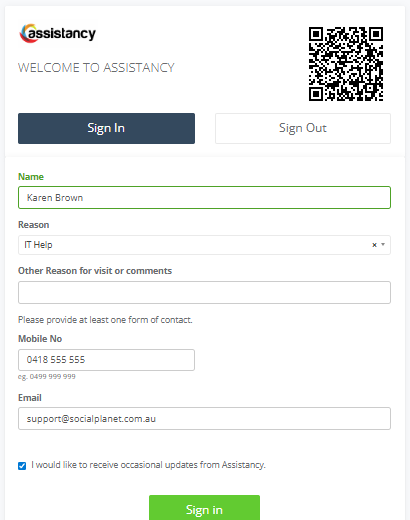
- Show manual entry form — people type in their details manually.
9. Click Add
This saves your new log.
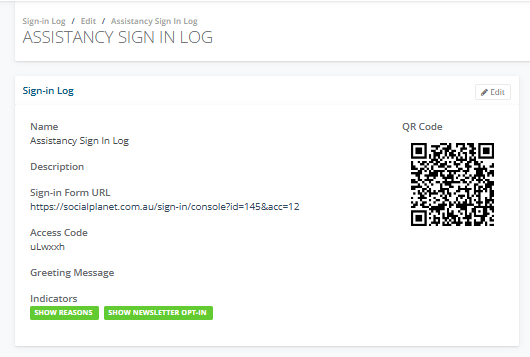
10. Select Edit to change the Sign-in Log settings.
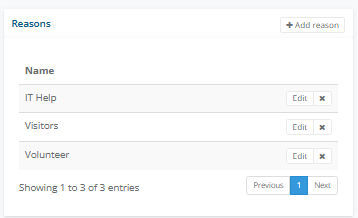
11. Add sign-in reasons
Go to the Reasons panel and click + Add reason. Add the categories that suit your centre — for example: Volunteer, Centre Participant, Student on Placement, Visiting Professional.
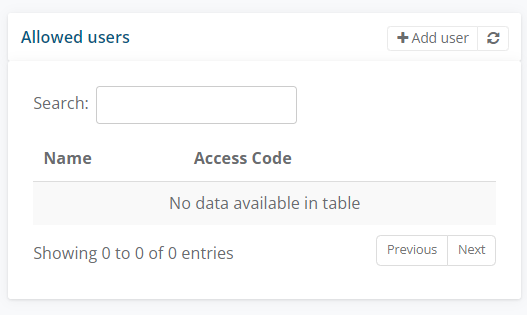
11. Add users with access codes (Restricted logs only)
- Go to your log and click + Add user.
- Search for the person and assign them an Access Code.
- Tick Regenerate access codes for allowed users to generate codes for all staff then click Save.
12. Put the sign in log on a tablet
You can display the log on an iPad or tablet at your front desk. You have two options:
- QR code — click the QR code option, save it to a Word document, print it, and display it for visitors to scan.
- URL — copy the sign-in form URL and paste it into a browser (Chrome or Safari). Enter the password when prompted.
13. Signs In
14. Signing out a visitor
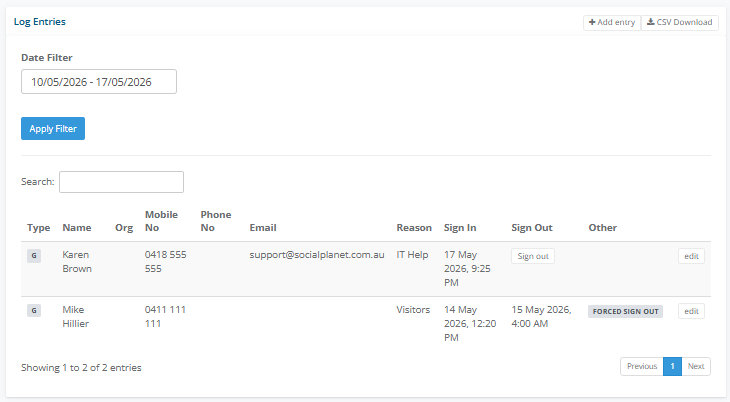
Visitor sign in and sign out times are recorded in the Log Entries panel. There are a few ways a visitor can be signed out:
- Self sign out — the visitor signs out using the tablet or by scanning the QR code.
- Manual sign out — find the visitor in the Log Entries panel and click Sign out next to their name.
- Forced sign out — if you ticked Force Sign Out at End of Day when setting up the log, visitors are automatically signed out at midnight. These entries will show Forced Sign Out in the Sign Out column.
15. Editing a log entry
To correct or update a visitor's details, click edit next to their entry. The Edit Log Entry window will open, where you can update their Name, Company or Organisation, Mobile No, Phone No, Email, and Reason. Click Save when done.
Manual sign out
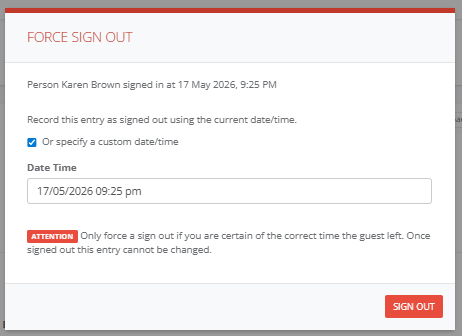
Find the visitor in the Log Entries panel and click Sign out next to their name. The Force Sign Out window will open.
By default, the sign out time is set to the current date and time. If you need to record a different time, tick Or specify a custom date/time and enter the correct date and time in the Date Time field.
Click Sign Out to confirm.
Important: Only force a sign out if you are certain of the time the guest left. Once signed out, the entry cannot be changed.

16. Filtering and downloading log entries
Use the Date Filter to view entries for a specific period. Enter your date range and click Apply Filter to update the list.
To export the data, click CSV Download in the top right of the Log Entries panel. This gives you a spreadsheet you can use to track attendance trends or support funding and reporting requirements.