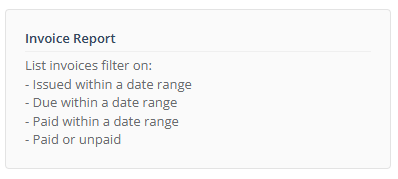
The Invoice Report is your central hub for tracking all financial requests issued by your centre. Use this report to monitor outstanding debts, verify payment dates, and prepare data for your accounting software (like Xero or MYOB).
- Go to Main Menu select Reports then Payment and Invoice Report
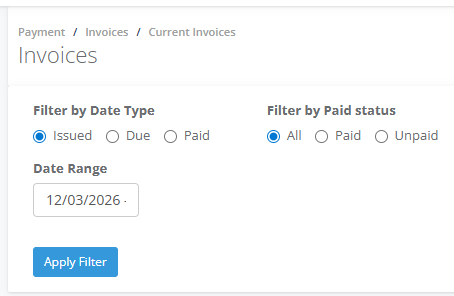
- Use the Filter by Date Type to select the Invoice Status type - Issued, Due and Paid
- Use the Filter by Paid status - Add, Paid and Unpaid
Understanding the Invoice Table
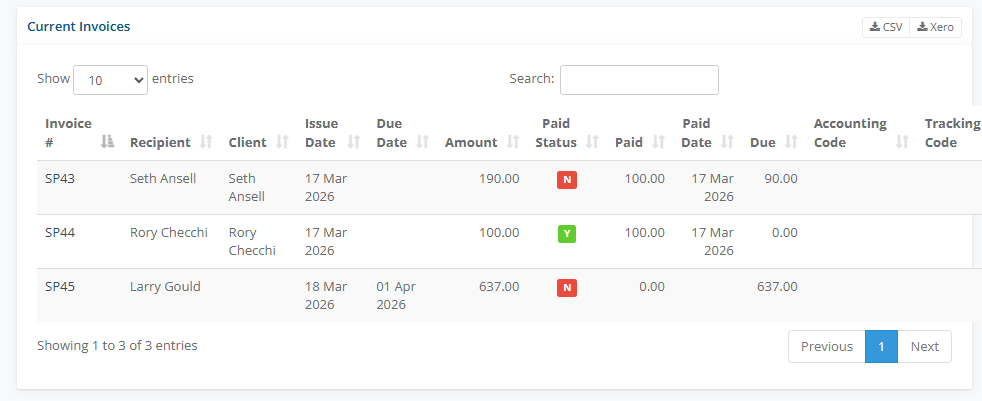
Each row provides a snapshot of an individual invoice's lifecycle:
| Column | Description |
| Invoice # | The unique identification number for the transaction (e.g., SP43). |
| Recipient/Client | The person or organization responsible for the payment. |
| Issue/Due Date | When the invoice was created and its deadline for payment. |
| Amount | The total value of the invoice. |
| Paid Status | Visual indicator: Green for fully paid, Red for unpaid or overdue. |
| Paid/Paid Date | Shows how much has been collected and the date the transaction was settled. |
| Due | The remaining balance outstanding on that specific invoice. |
| Accounting Code | The General Ledger (GL) Code. This maps the revenue to a specific account in your Xero Chart of Accounts |
| Tracking Code | Tracking Categories. Used to segment your data by space or activity type source without cluttering your Chart of Accounts. |
4. Use the CSV or the Xero icons to download the file.