Here’s how to set-up a “free trial session” participants can attend before they commit to paying for a full term.
Part 1: Configuring a Free Trial Ticket Package
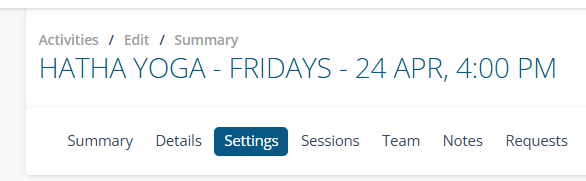
From the Frontdesk, head to the Activities header, click Current and then Edit on the activity of your choice.
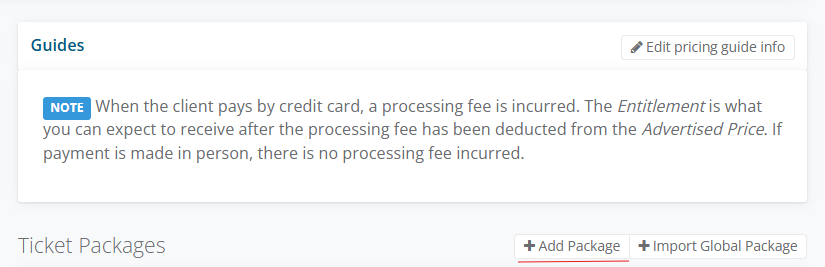
Select the Settings tab, then click the +Add Package button above the Ticket Packages panel to create a new ticket package.
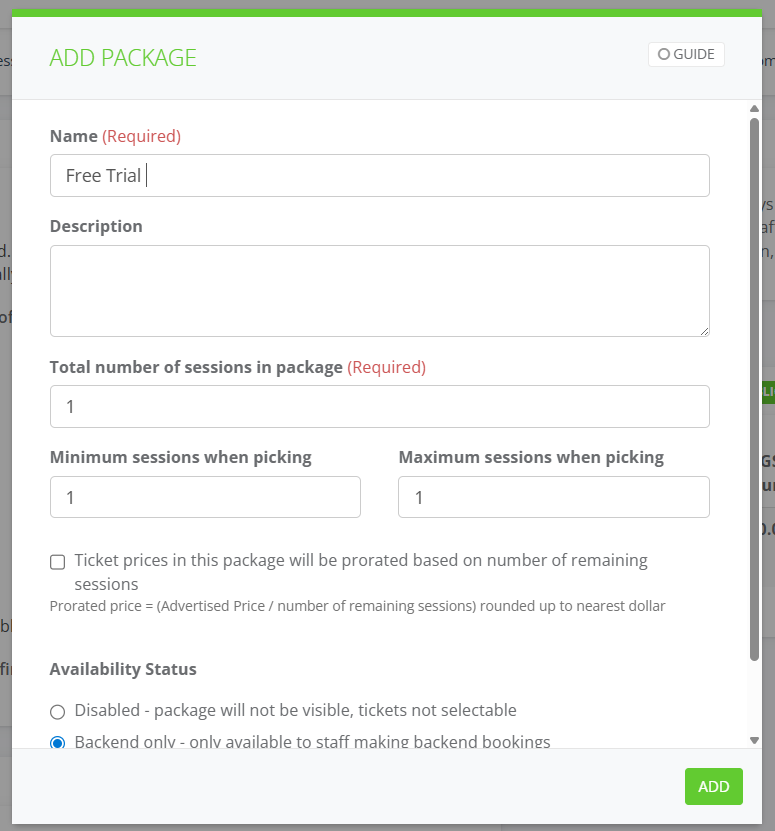
In the Add Package window, fill out the following information.
A name that is some form of “Free Trial” and Description
Enter Total Number of sessions in package eg 1
In Availability Status enter Backend only - only available to staff making backend bookings
Click Add.
Next, click +Add Ticket, on the newly created ticket package. This will open the Add Ticket window, fill out the following information.
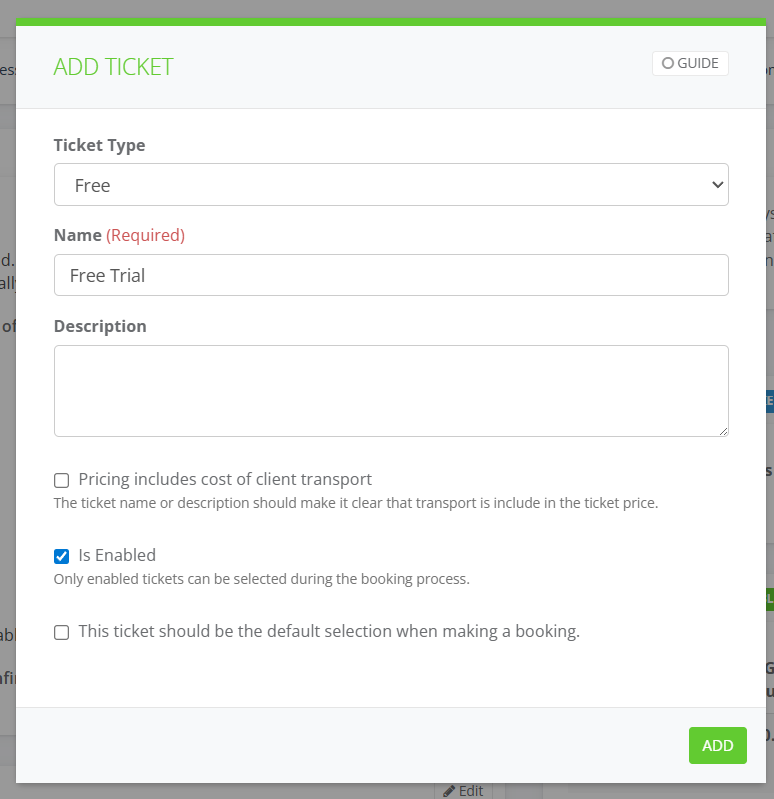
Select Ticket Type - “Free”
Name the ticket along the lines of “free trial”.
Leave Is Enabled ticked.
Click Add.
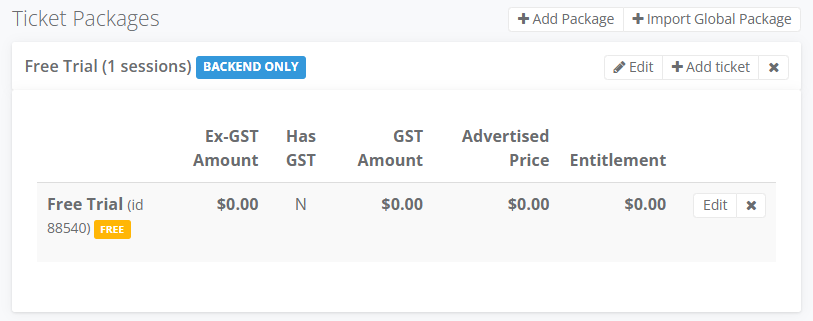
Part 2: Manual Booking for Trial Participants
- From the Frontdesk, go to Clients and select Client List.
- Fill out the Search Field and select the Actions button on the client tile, then Create activity booking
The Create Booking Request page will now be open, either scroll down or Search for the desired activity, review its attendee capacity, then click Continue Booking.
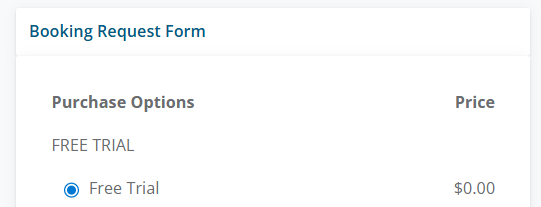
In the Booking Request Form select Free Trial.
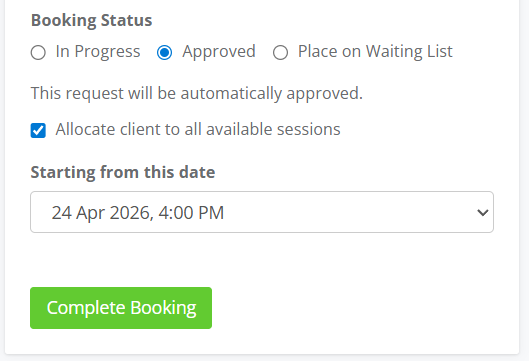
In Booking Status select Approved then select the session date and Complete Booking
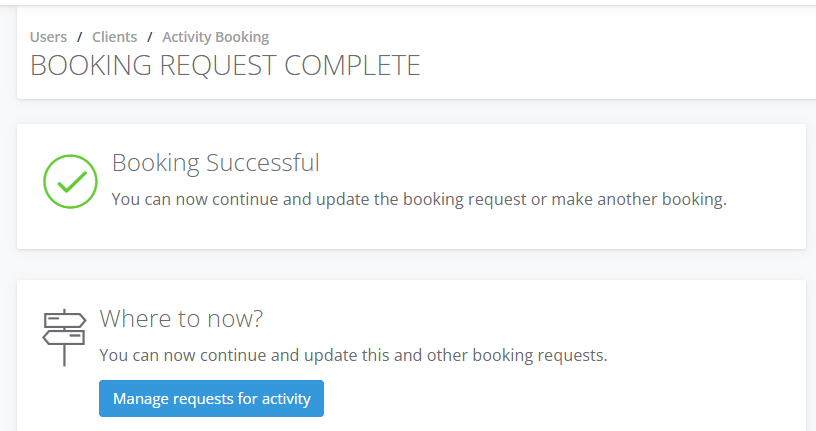
In the Booking Request Complete, select on Manage requests for activity
 7. The client has been booked into the Activity and he has been allocated to the Come and Try Session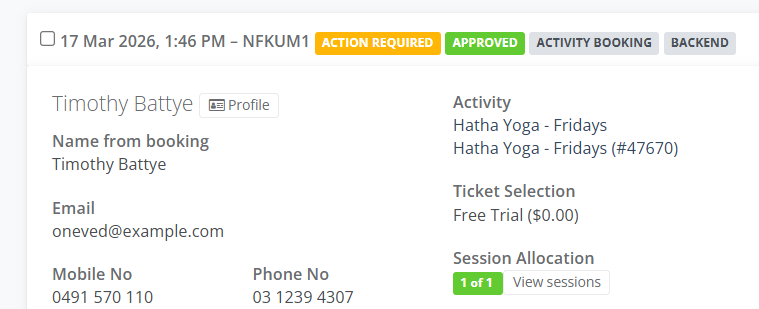
Part 3: Converting a Trial to a Paid Booking
- Go to the Request tab, enter client name in Search and in the Client Tile select Actions then Change Details

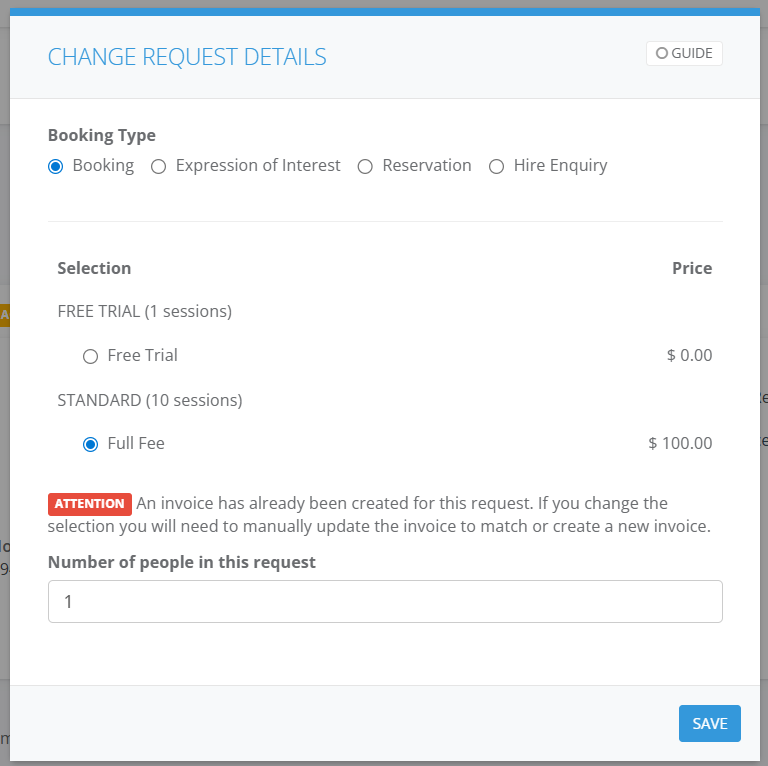
- In the Change Request Details change to Booking then select Full Fee and Save
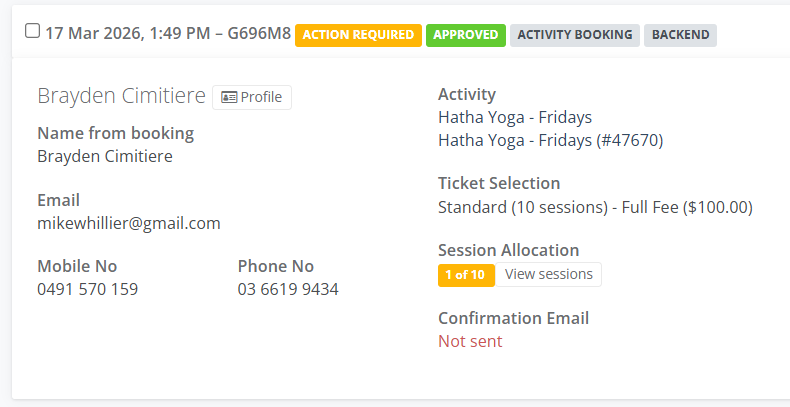
- The Ticket Selection will change to Standard (10 sessions) - Full Fee ($100.00) and the Session Allocation will show 1 of 10, select on View Sessions to allocate the participant to all the sessions for the class
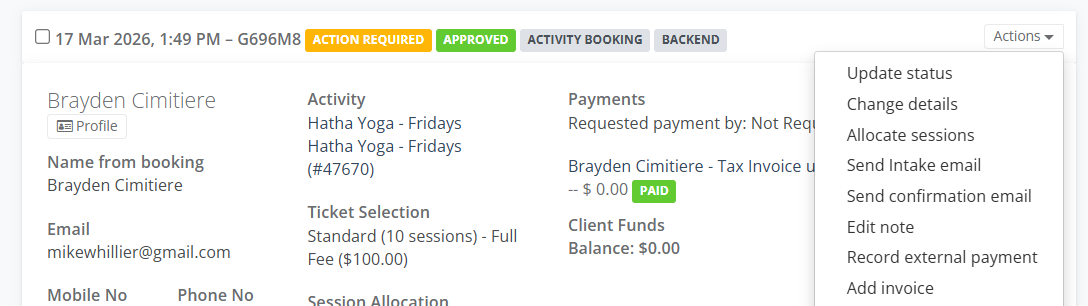
- Then go to Actions select Add Invoice
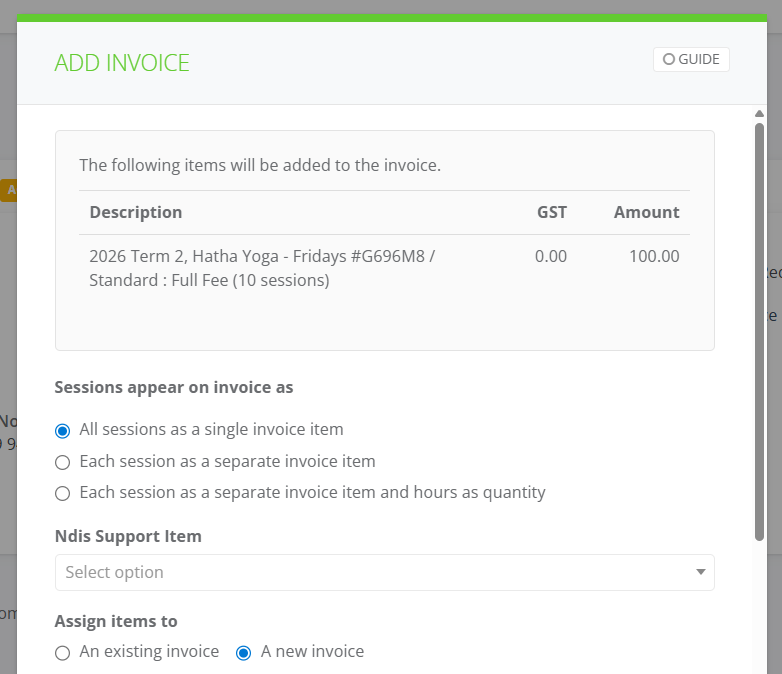
- Review the ticket item description and amount. In Sessions appear on invoice as choose All sessions as a single invoice item. Then Assign items to - A new invoice
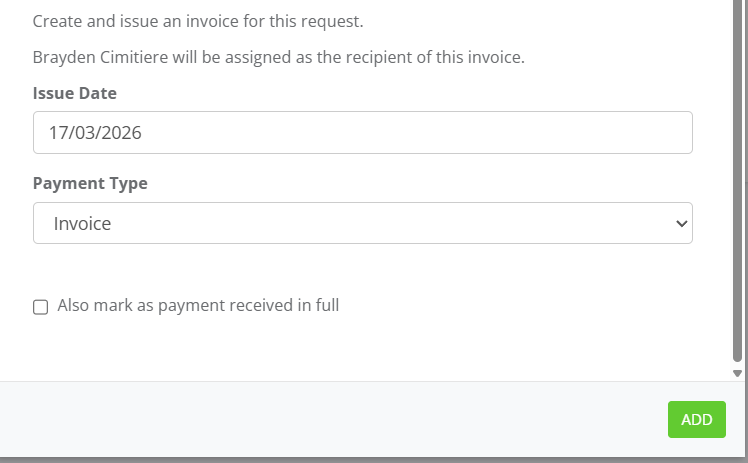
6. The Issue Date will reflect today's date, change if necessary and in Payment Type select the method eg. Invoice and select Add.