
Expression of interest (EOI) as a booking type reduces the amount of information a participant has to complete when booking online. Use EOI if you don't want to use Social Planet's payment gateway or if you need enough participants first before the activity is viable and can go ahead.
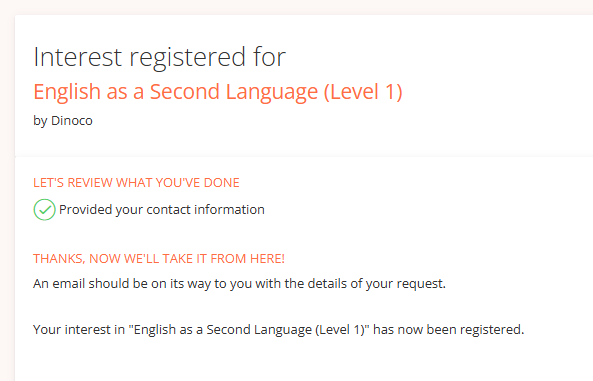
1. The participant completes the EOI Booking. Only first name, last name, email, mobile, suburb, postcode, how did you hear about us and student declaration are required for Registering Interest.

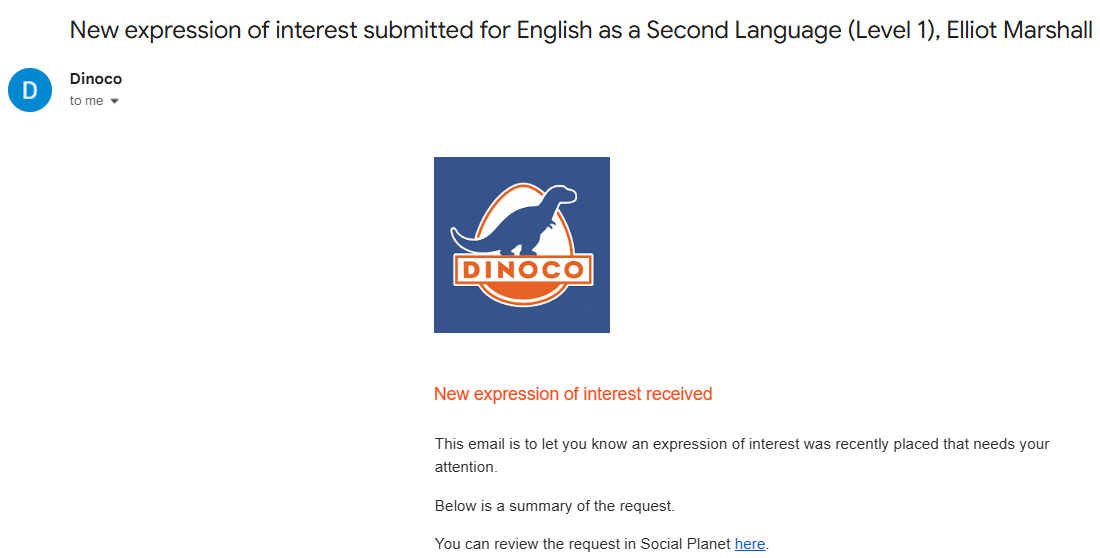
2. When an Expression of Interest booking has been made an email message notification under the title New booking request received will be sent to staff. The following text will appear ‘You can review the request in Social Planet here’.
Select the here link to go to the Request tab on the Activity Summary page.
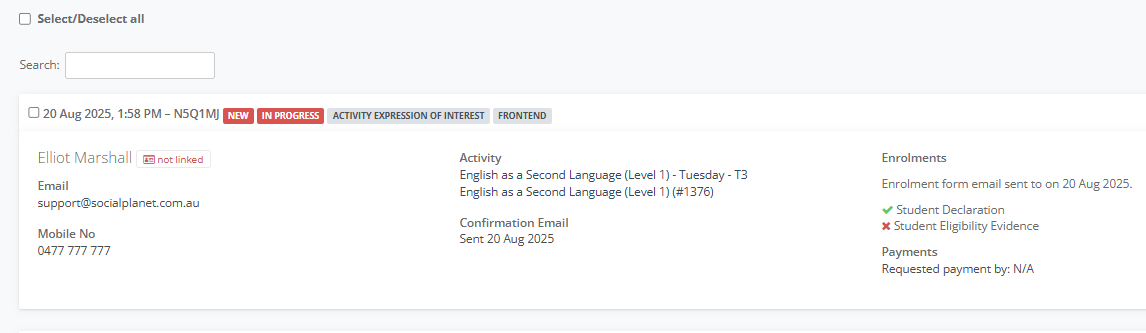
3. Go to the Client Tile within the Request tab.
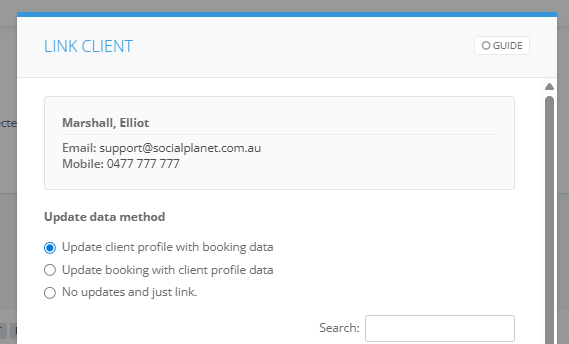
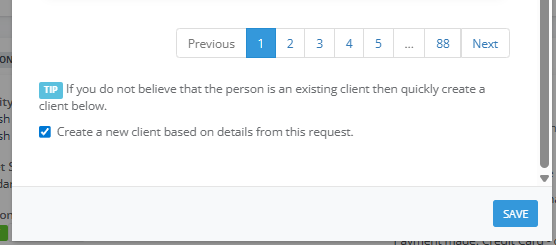
3. Go to the Not Linked button to add them into the Client database, the Link Client window will be displayed. If they are already an existing client click on the Select button. If they are new tick Create a new client based on details from this request. Select Add
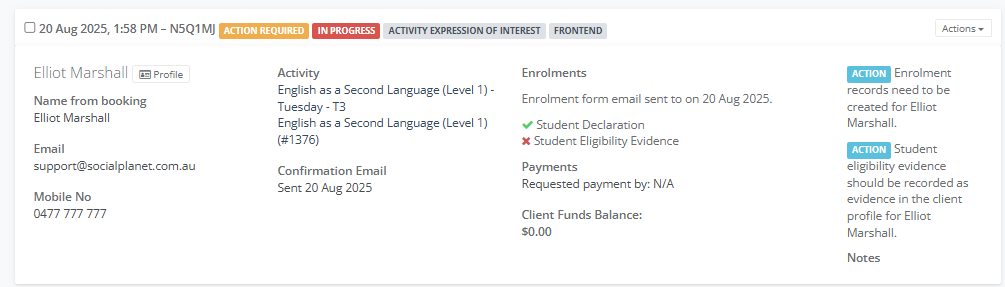
4. Be guided by the Blue Action for the steps required for processing the booking.
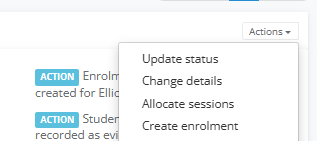
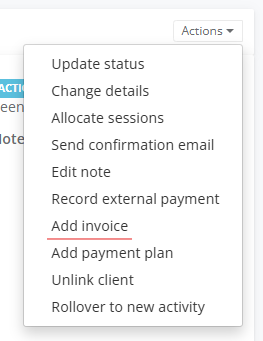
5. Go to the Actions button on the Client Tile and select Create Enrolment then select Create
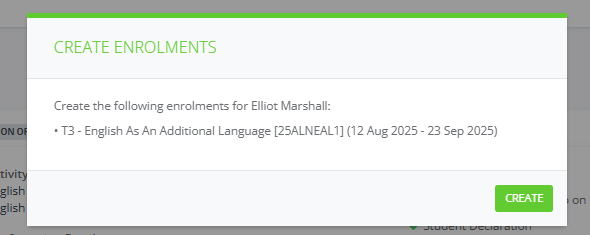
6. An Enrolment will be created
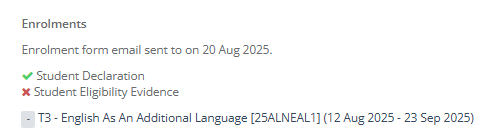
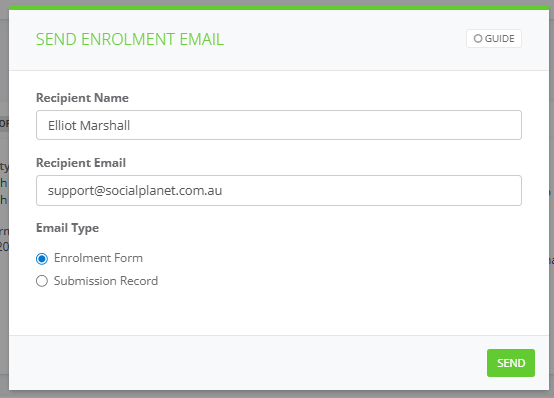
7. Select the Actions and choose Send Enrolment for an online form to be sent.
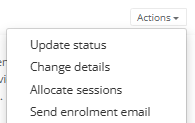
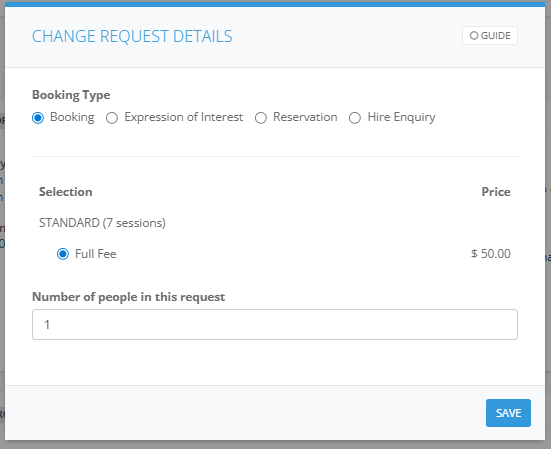
8. Select the Actions button and select Change Details. Change from Expression of Interest to Booking. Then under Selection choose a Ticket option then select Save.
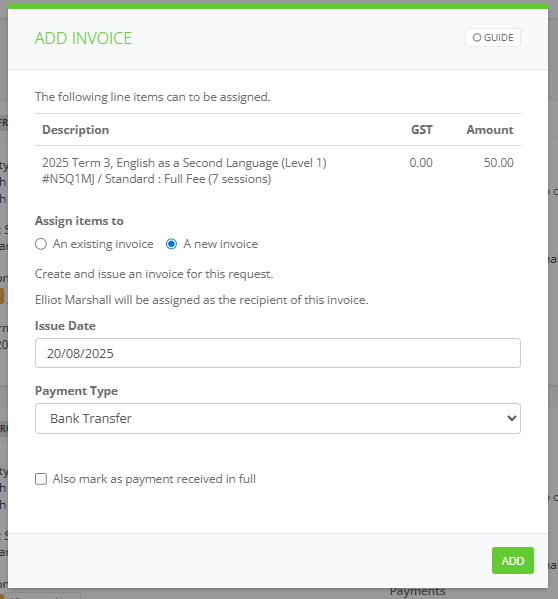
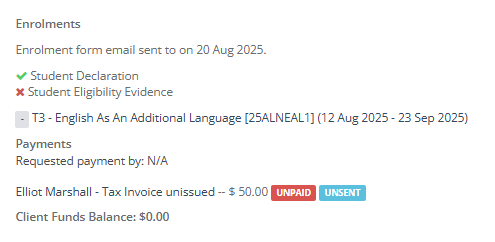
6. A new window will be displayed Add Invoice, enter an Issue Date (defaulted to today’s date) type over to change, Payment Type – EFT, Cash etc select from the drop-down list to change , select the Add button.
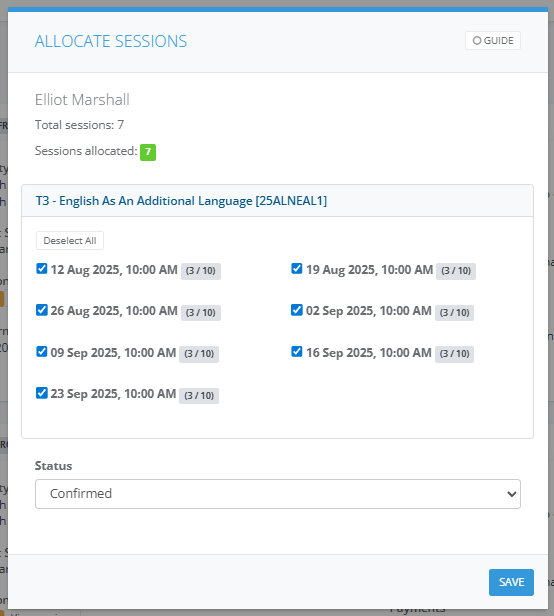
7. Add the person to the Attendance Sheet by selecting Allocate Sessions
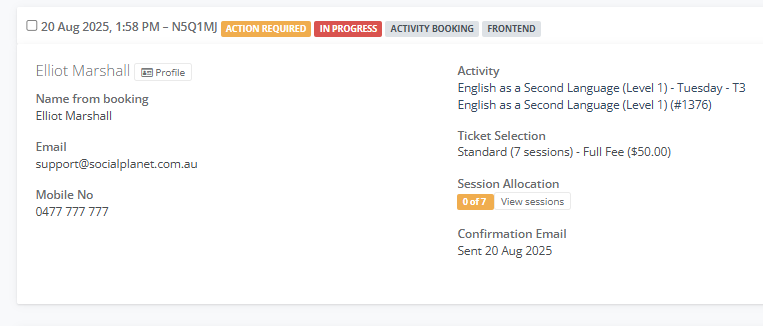
8. Keep the Status Label - Action Required and In Progress - to alert staff to chase up payment.