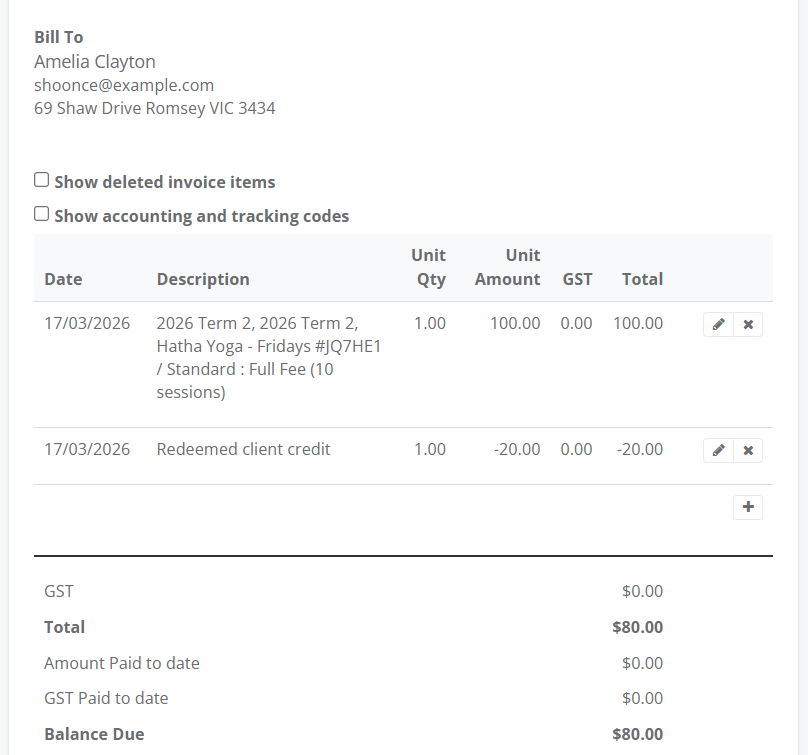
This guide explains how to apply a client's available credit toward a new activity booking. Depending on the balance, you can use credit to pay for an activity in full or as a partial payment.
To issue a client credit click here
Option 1: Apply Credit During Booking
Use this method to redeem funds at the moment you are booking a client for an activity.
Go to Main Menu, then Clients, select Client List
In the Client List enter the Client’s Name in the Search Field
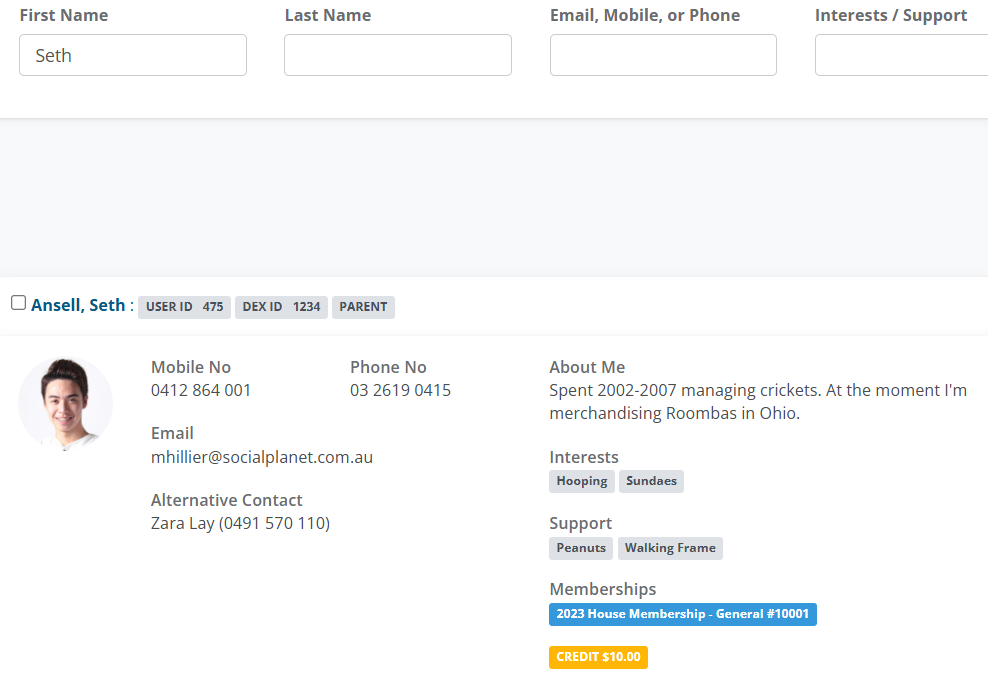
Select the Actions Button above the Client Tile and click on Create Activity Booking

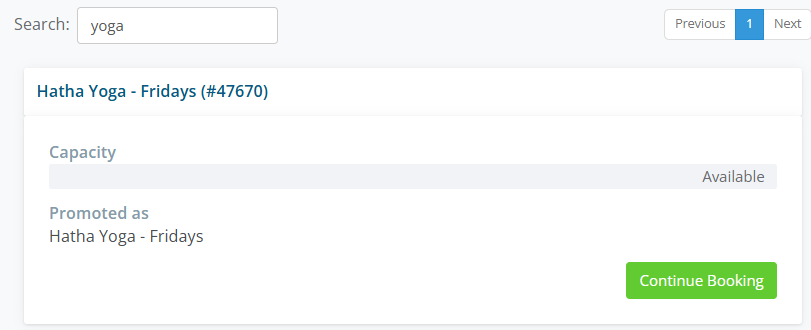
In Search enter the Activity Name and then select Continue Booking
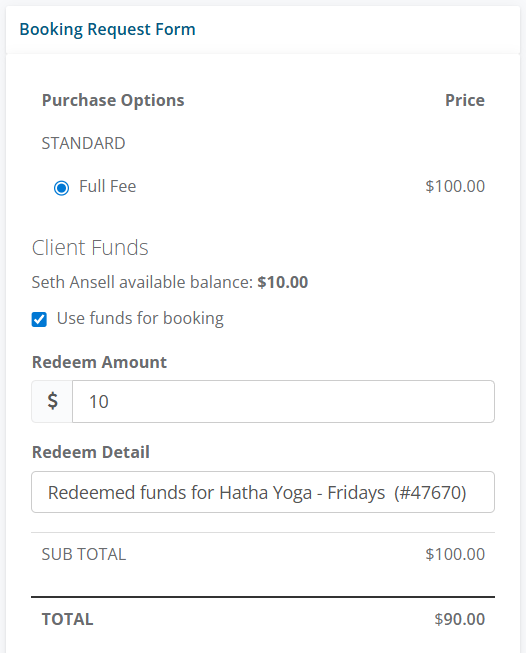
In the Booking Request Form pane, select Use funds for booking
Choose a Payment Method ie Bank Transfer, Cash, Cheque
Select Invoice using Social Planet
In the Booking Status, select from
Approved, payment has been accepted, then
Select allocate client to all available sessions, use the drop-down list to select session dates.
Select the Manage Requests Button
Option 2: Apply Credit to an Issued Invoice
Use this method if the booking has already been created and you need to reduce the balance on an existing unpaid invoice.
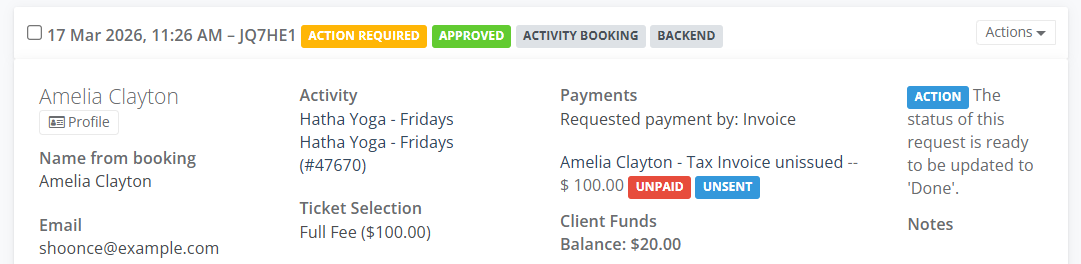
- On the Requests tab the Client Tile will appear, the invoice will be displayed. Click on the Tax Invoice unissued tags Unpaid and Unsent
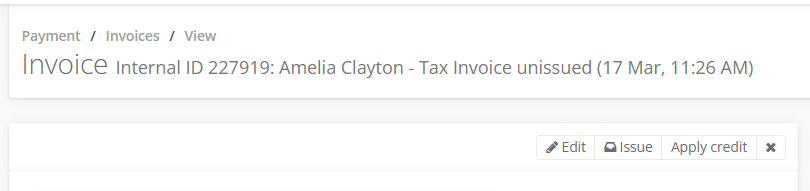
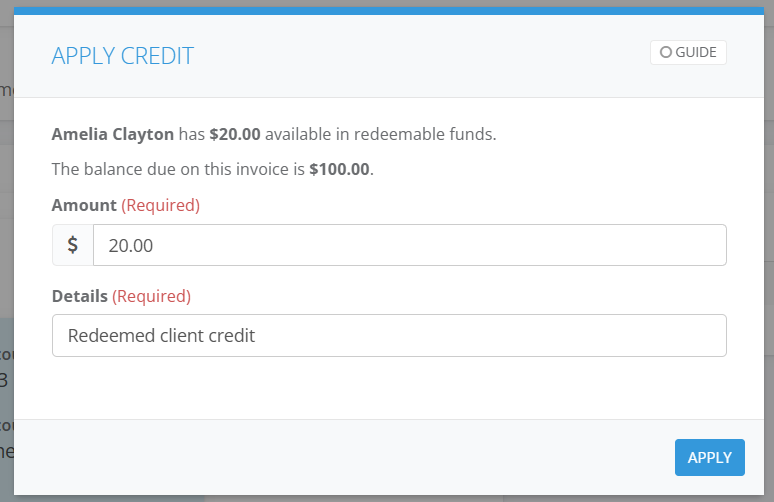
- Select on the Apply Credit button use the credit amount available select Apply
- The credit amount will be applied to the invoice select Issue to display the invoice
- The Invoice will include the Redeemed client credit amount reducing the balance owing.