
A travel plan lets you organise transport for activities like community shopping trips or mystery drives. Once set up, you can generate a pick-up and drop-off schedule that includes passenger details and stop-by-stop instructions for your driver.
Before you begin
Before creating a travel plan, ensure that:
- The activity has been created and sessions are scheduled.
- Attendees are booked into the activity and are assigned to the session.
- Assigned a vehicle to the Centre. See article
Part 1: Create a travel plan
Follow these steps to organize your transport logistics:
1. Access the Travel Tab
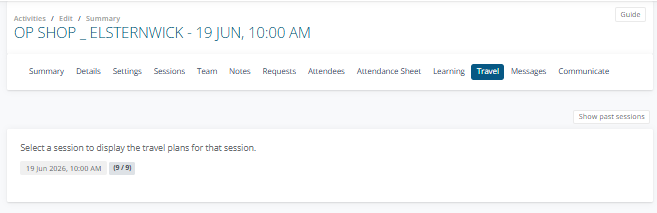
Navigate to the Activity Summary for your chosen activity and click on the Travel tab located in the top navigation menu.
2. Select Your Session
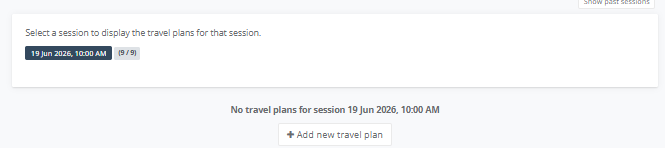
Select the specific session date and time for which you need to create a travel plan. If no plans exist yet, the system will display "No travel plans for session."
3. Create the Plan
Click the + Add a new travel plan button to open the configuration window.
4. Configure Travel Details
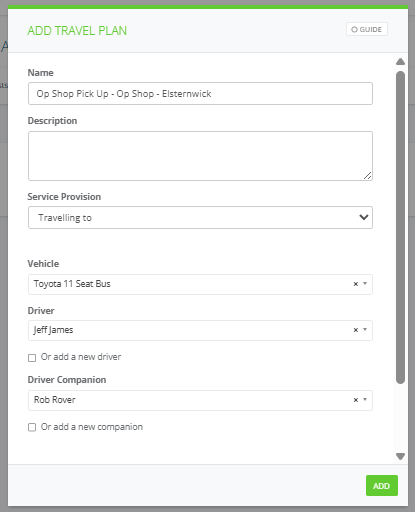
In the Add Travel Plan window, complete the following fields:
- Name: Give the plan a descriptive name (e.g., "Op Shop Pick Up - Op Shop - Elsternwick").
- Service Provision: Select the direction of travel (e.g., "Travelling to" or "Travelling from")
- Vehicle: Choose the assigned vehicle from the dropdown menu (e.g., Hyundai Hatch or Community Bus).
- Driver: Select an existing driver or check the Or add a new driver box to input a name, mobile number, and email address manually.
- Companion Select an existing driver or check the Or add a new driver box to input a name, mobile number, and email address manually.
5. Link Attendees and Addresses
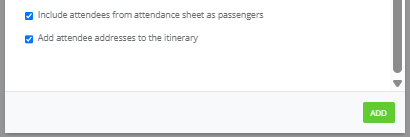
To ensure the driver has a complete itinerary, check the following boxes at the bottom of the window:
- Include attendees from attendance sheet as passengers: This automatically links your booked participants to this vehicle.
- Add attendee addresses to the itinerary: This pulls the residential addresses provided in the client records to create the route.
To change client address, go to Activity Summary > Request tab > Select Profile Icon > Edit > Primary Contact.

6. Save
Click the green Add button to finalize and save the plan.
Part 2: Manage and share a travel plan
Once your travel plan is saved, select Actions to see what you can do next.
7. The Travel Plan Dashboard will be displayed and shows the target session date and time eg.. 19 June 2026 10:00 AM, a blue TRAVELLING TO directional status tag.
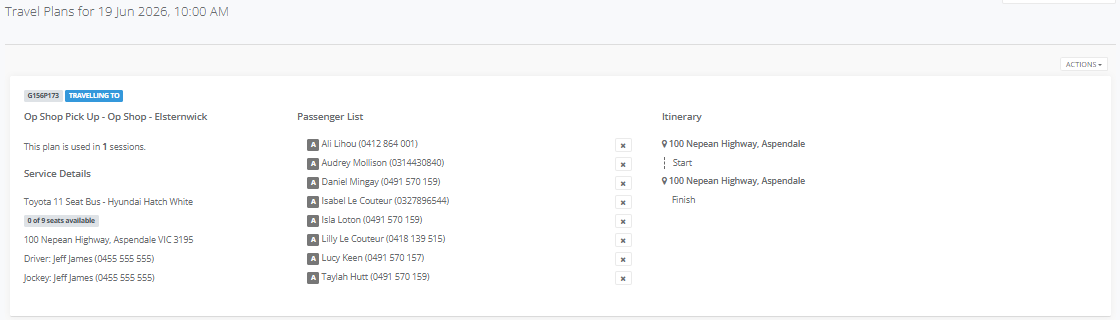
8. Select Actions >
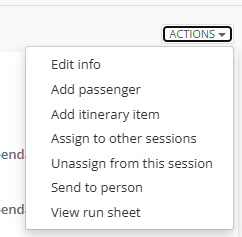
- Edit Info - change the travel plan such as name, description, service provision, vehicle, driver and driver companion
- Add passenger - include a client or staff member to a travel plan
- Add itinerary item - create an itinerary step by entering an address and description
- Assign to other sessions - copy the travel to other sessions
- Unassign from this session - remove the travel plan from this session
- Send to person - send the travel plan to a person eg. driver
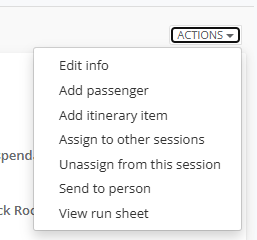
- View run sheet - view the run sheet in a separate tab, ideal for printing as a pdf
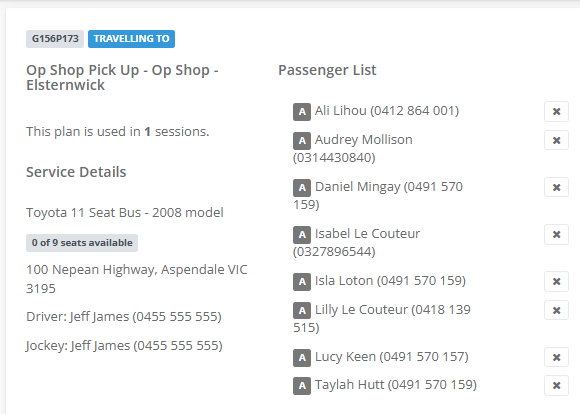
An example of setting a Travel Plan for an Op Shop run, Elsternwick
1. All the participants will be transported in the Toyota Bus, Driver and Companion assigned with their contact details. Participants are listed with their phone numbers. To remove a passenger select the x.
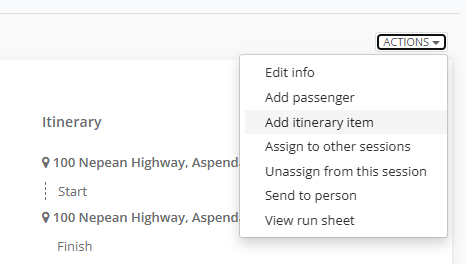
2. To add the Op Shop locations select Actions > Add itinerary item
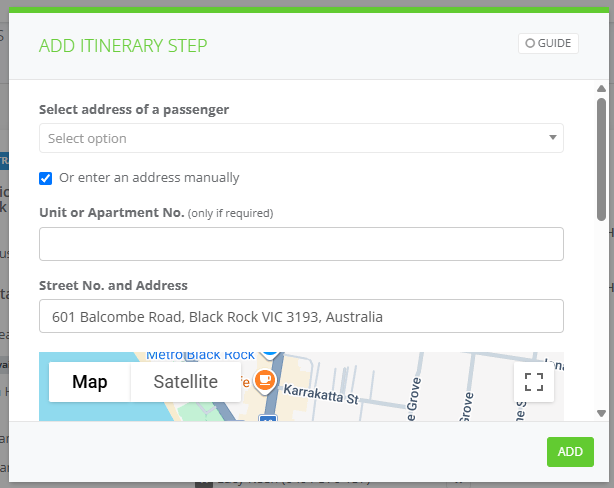
3. Add Itinerary Step window appears, entered the Op Shop location
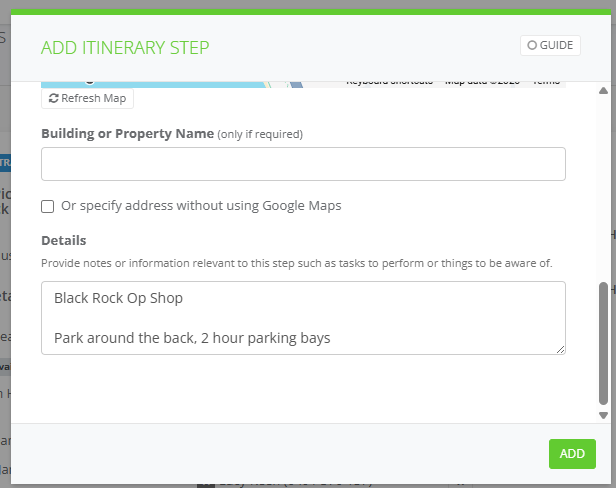
4. In the Details entered instructions for the driver.
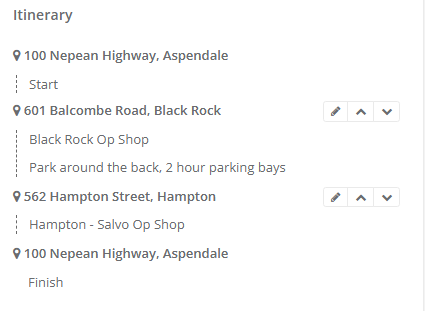
5. Once you've added multiple itineraries you can use the up and down arrows or edit individual itineraries. Select on the pencil icon.
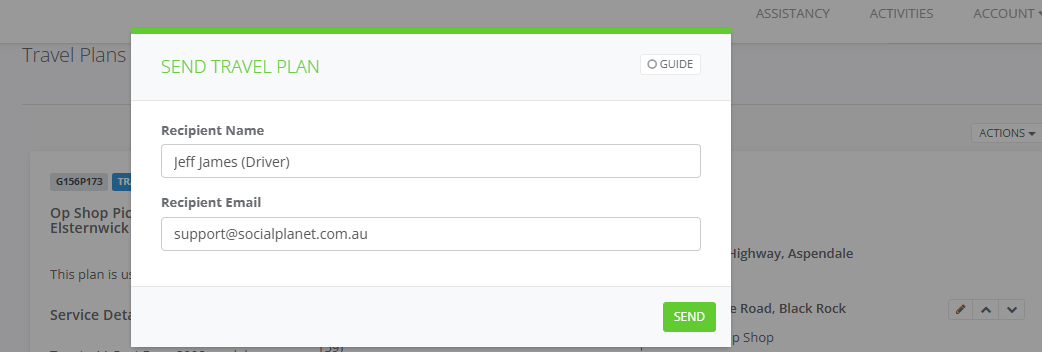
6. To send the Travel Plan to the driver. Select Actions > Send to person
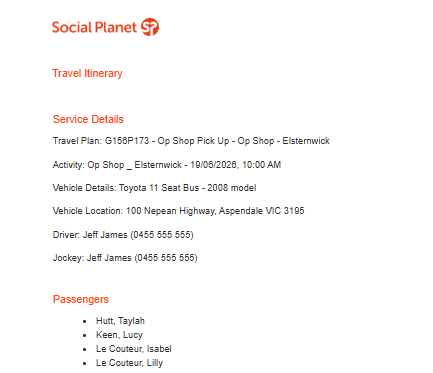
7. The Travel Plan Email Content lists the Travel Itinerary and Passengers
8. To down the runsheet and print as a PDF, select Actions > View run sheet
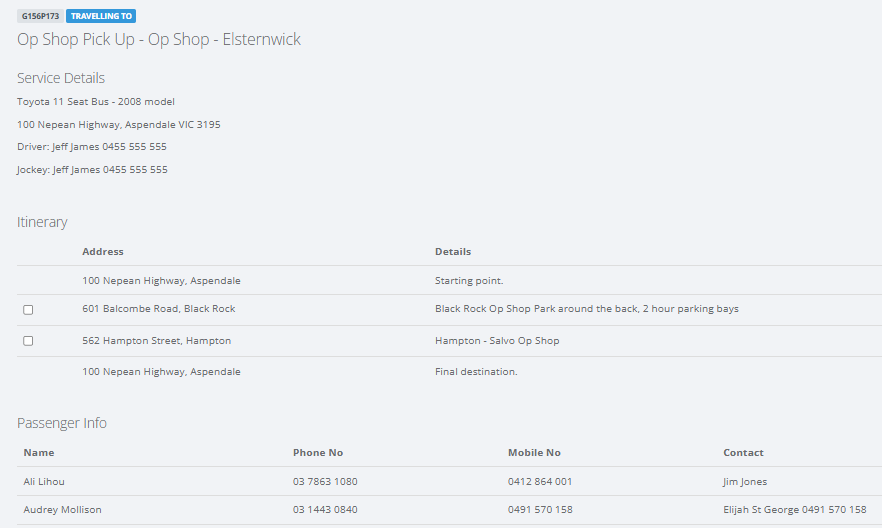
9. The Run sheet will display the Travel Plan on a separate web page and it displays the Travel Plan name, Service details, the Itinerary items and Passenger Info, client name, phone and mobile details.
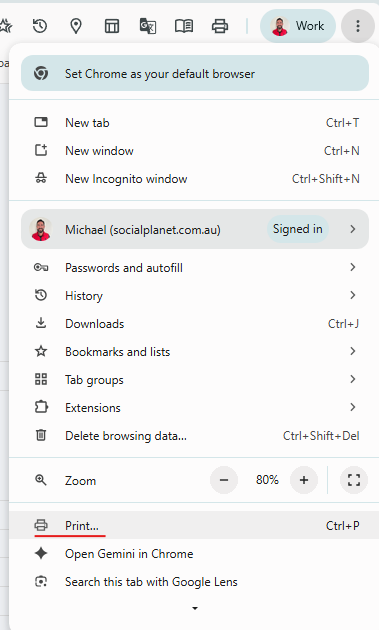
10. To print, select on the three dots, scroll down to Print and Save as PDF
Related articles
• Setting up vehicles for your centre
• Booking clients into activities and sessions
• Managing attendees and the attendance sheet